Invoices
Bill a customer or a billing account directly, record payments against an invoice, and issue a credit note when something needs correcting.
Invoices let you bill a customer — or a company billing account — outside the register, with its own due date, reference numbers, and payment tracking.
Create an invoice
- Open Invoices from Growth in the sidebar and click New invoice.
- Under Recipient, choose who this invoice is for — a customer or a billing account — or click New billing account to add one.
- Add lines: pull in Open fees or Recent appointments with Add to invoice, or click Add line to enter one manually.
- Set the Due date and Line disclosure — Detailed or Neutral wording on each line — plus Your reference and Our reference if needed.
- Click Create invoice.
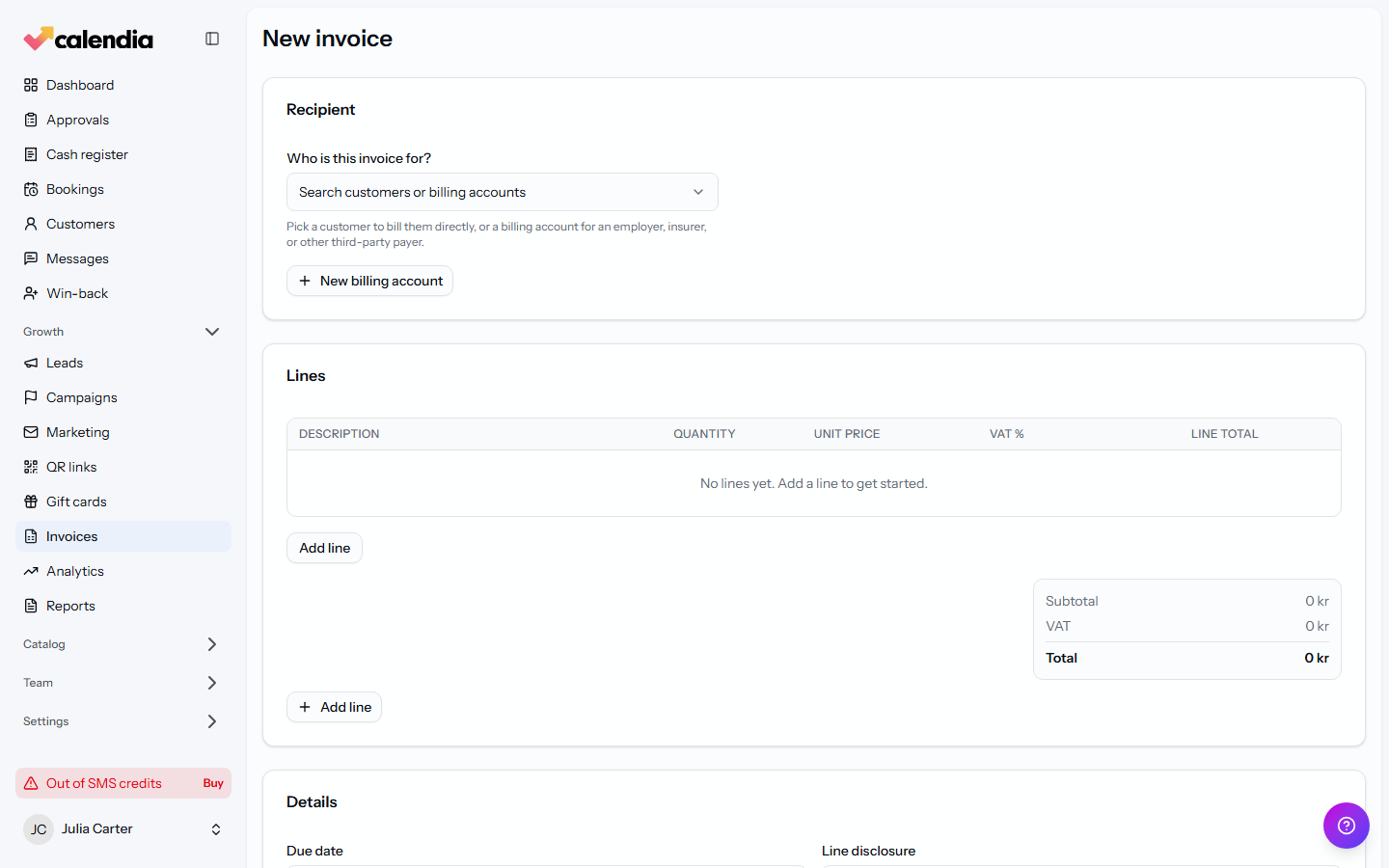
A new invoice starts as a Draft. Open it and click Issue when it's ready to send — issuing locks its numbering and lines.
Record a payment
On the invoice, click Record payment, choose the Method (Card (online), Vipps/MobilePay, Bank transfer, or Other), enter the Amount and Payment date, then confirm. The invoice's Total, Paid, and Remaining amounts update immediately, and its status moves through Partially paid to Paid.
Send, correct, or close out an invoice
From the invoice page:
- Download PDF or Send it directly to the recipient.
- Create credit note to reverse all or part of an issued invoice — this never edits the original.
- Send to collection if it's overdue and going to a collection agency, or Write off if it won't be recovered.
- Void a draft that should never have existed, or Delete draft to remove it entirely (only possible before it's issued).
Every action is logged under Events, from Invoice created through delivery, viewing, and any status change, so you can always see what happened and when.