Message your customers
Chat directly with customers who sign in to your member portal, right from the Messages page.
Messages is a private, one-to-one chat between your team and a customer, available once that customer signs in to your member portal.
Turn on chat
- Open Company settings and go to the Member portal tab.
- Tick Enable member portal so customers can create an account.
- Tick Enable chat.
- Set Who can chat to Members only (customers with a portal account) or All customers.
- Click Save.
Reply to a customer
Customers start a conversation from their member portal. New conversations, and new messages in existing ones, appear on Messages in the sidebar, with an unread count next to each customer's name.
- Click Messages in the sidebar.
- Open a conversation from the list.
- Type your reply and click Send.
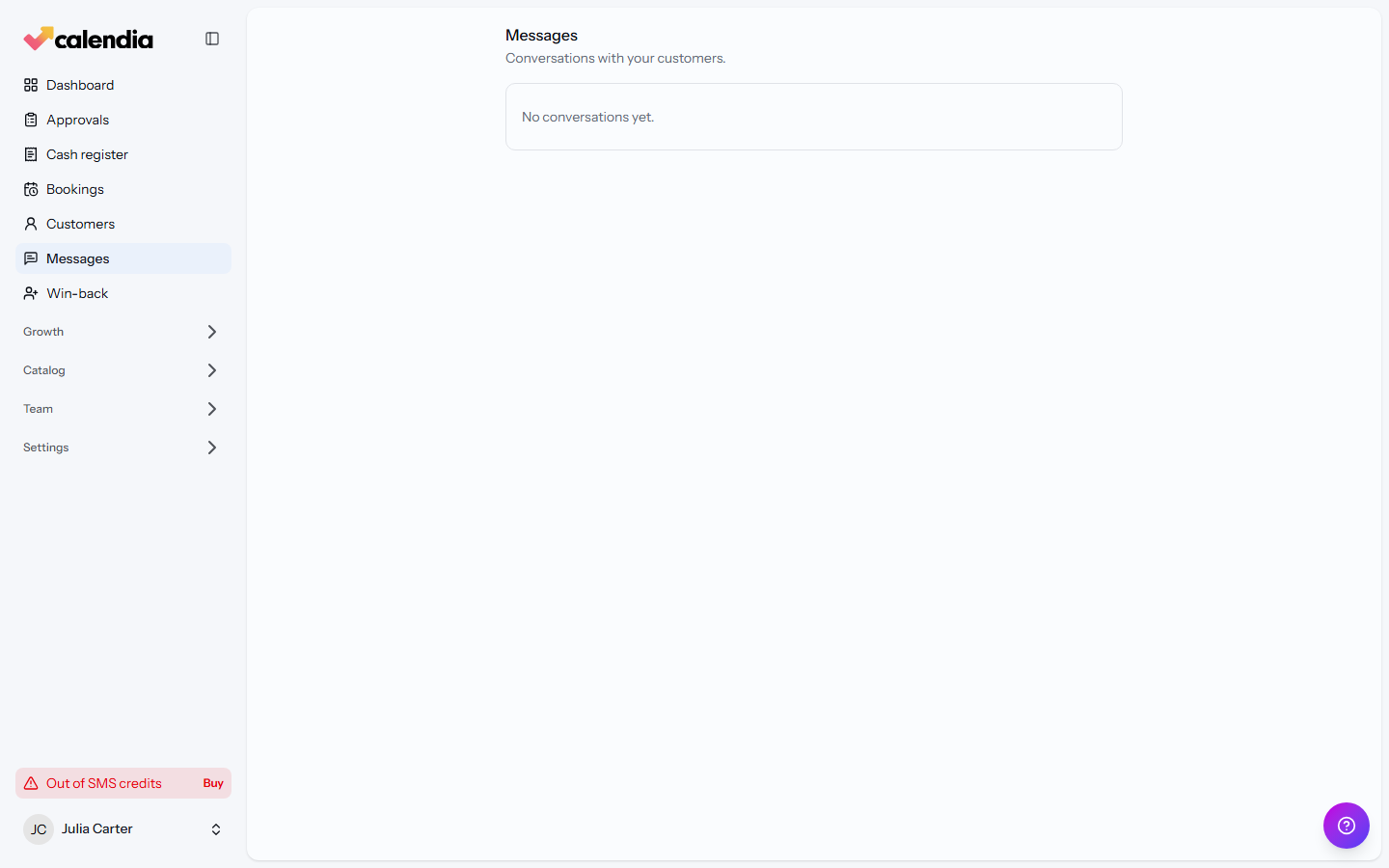
New messages arrive on the page in real time, so you don't need to refresh while a conversation is open.
Customize automatic customer messages
The Messages tab in Company settings also controls the standard wording Calendia sends for booking confirmations and appointment reminders. Email and SMS have separate templates. A service with its own automatic-reminder message overrides the appointment-reminder template; a service with a blank message uses the current business default.
Calendia's default templates are localized to the customer's booking language. Text you save here is one business-wide override and is sent exactly as written in every customer language; Calendia does not translate it automatically. If you serve customers in several languages, keep the defaults unless the same custom wording suits everyone. Restore default removes the override and returns to the localized defaults.
Use Restore default to return a template to Calendia's wording. Placeholders insert booking details automatically. For example, {address} uses the selected physical location's address, or the business address from its legal details when the booking has no location. It stays blank for video appointments, virtual locations and bookings without a physical address.
Under Customer reminder choices, you can allow customers to opt in to email reminders, SMS reminders, or both after they book. Customers choose each channel and its timing independently; enabling the choices does not opt anyone in automatically.
Frequently asked questions
Where does the customer send messages from?
From their member portal, on the Messages page — the same place they see their membership and upcoming appointments. If they have no conversation yet, they see a prompt to start one.
Can a customer message us without a member portal account?
No. Chat rides on the member portal, so a customer needs to sign in there first. If Enable member portal is off, or the customer hasn't created an account, they have no way to start a conversation.
Can we stop a customer from messaging us?
Not from the Messages page itself. Open the conversation in the Calendia mobile app and use Block customer to stop them sending further messages — Unblock customer reverses it later.
Related articles
Member portal and memberships
Let customers create an account to manage bookings and chat with you, and sell recurring membership plans with discounts and included services.
Add and manage customers
Build your customer directory, search and filter it, and find customers who haven't booked in a while.
Customer profile, history and notes
Everything about one customer lives on their profile — past visits, payments, notes or journal entries, and pending access requests.