Add and manage customers
Build your customer directory, search and filter it, and find customers who haven't booked in a while.
Your customer directory holds every client's contact details, ready to attach to a booking or look up on the spot.
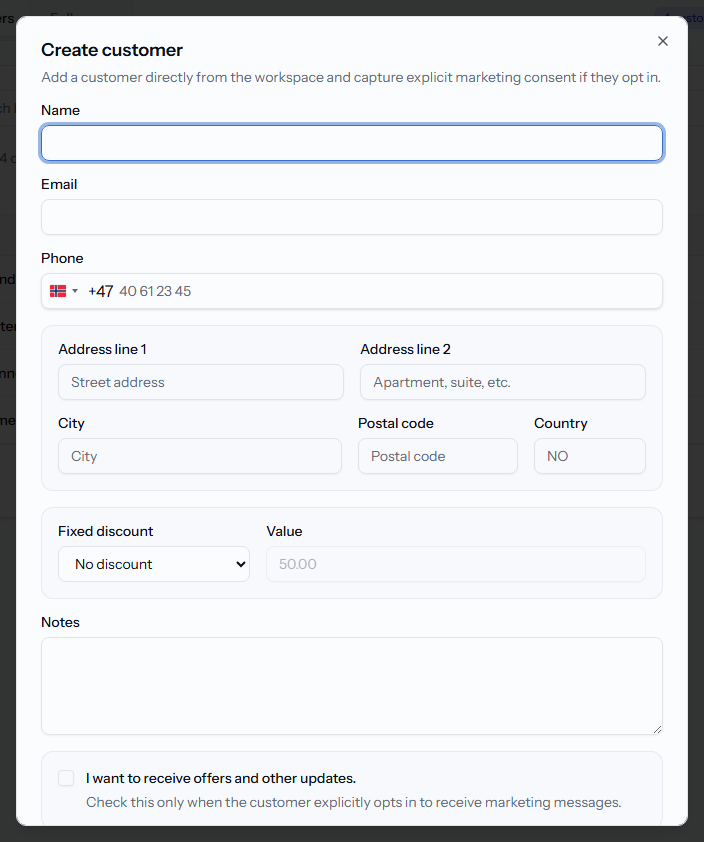
Add a customer
- Click Customers in the sidebar.
- Click Add customer.
- Fill in Name, Email and Phone, plus Address line 1, Address line 2, City, Postal code and Country if you keep them.
- Optionally set a Fixed discount: choose Percent or Fixed amount, enter the Value, and choose which services it applies to under Apply to services.
- Add any Notes.
- Click Save customer.
Find a customer
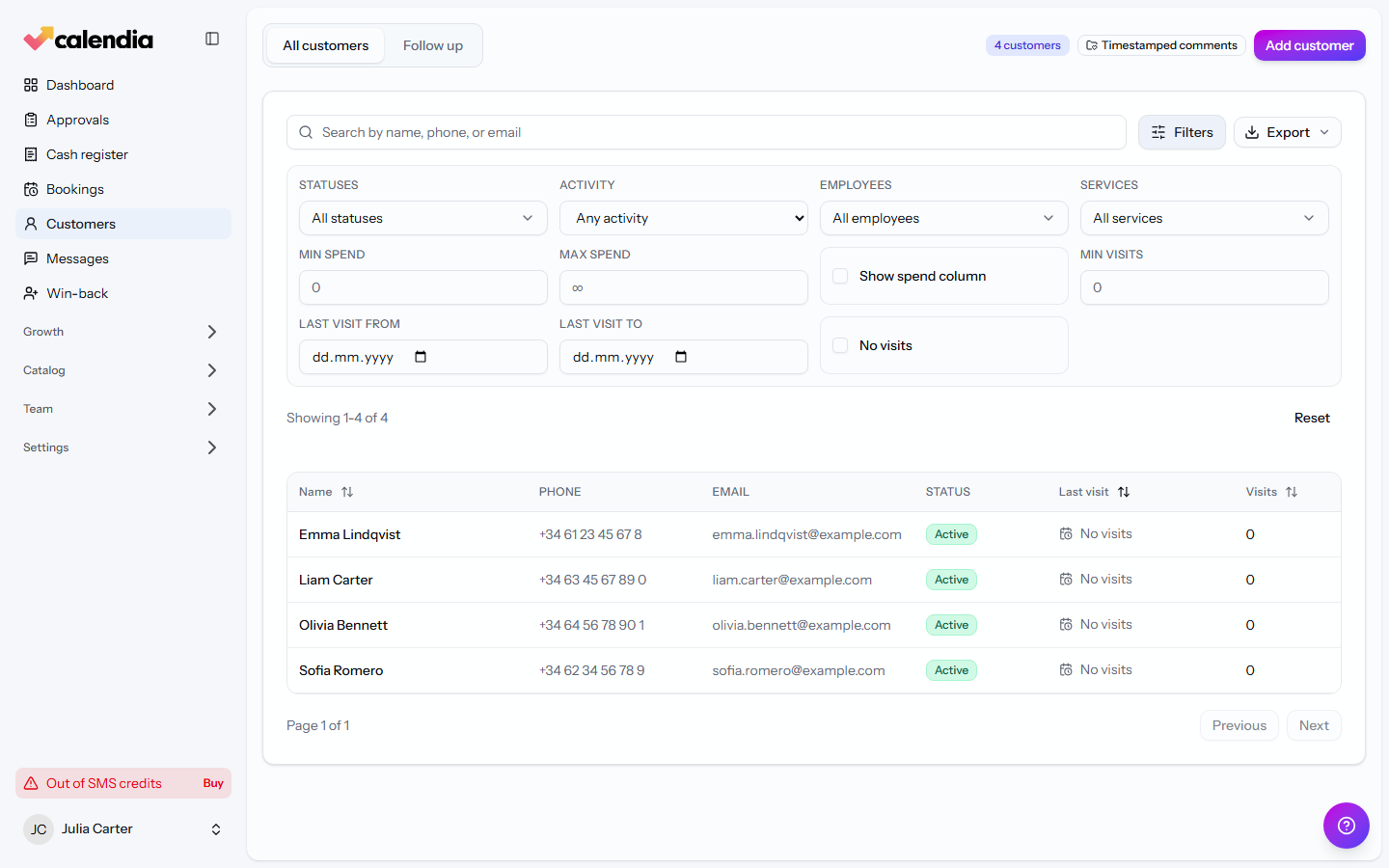
Use the search box ("Search by name, phone, or email") at the top of the list, or click Filters to narrow by Statuses, Activity (Active 30 days, Active 90 days, Active 180 days, At risk), Employees, Services, or a Min spend / Max spend range.
Comments or a full health journal
A badge next to your customer count shows Timestamped comments or Health journaling, depending on how your business is set up. This decides whether each customer's notes are a simple running log or a structured clinical record — see Customer profile, history and notes for what each looks like.
Follow up on quiet customers
Switch to the Follow up tab to see customers who haven't booked or visited within your configured inactivity window (set on the Bookings tab of Company settings). If you're specifically chasing customers whose last visit was a no-show or a cancellation, use Win back inactive customers instead.
Related articles
Customer profile, history and notes
Everything about one customer lives on their profile — past visits, payments, notes or journal entries, and pending access requests.
Win back customers after a no-show or cancellation
Reach out to customers whose last appointment was a no-show or a cancellation, waive a fee, or deal with repeat offenders.
Create a booking
Add an appointment to the calendar from the Dashboard for a fast walk-in booking, or from Bookings for a full booking with recurrence.
Import data from another system
Bring your customers, employees, bookings, journal history, leads, and catalog over from your previous system.