Forms and consent
Build health declaration and consent forms, send them to customers before their appointment, and review or approve what they submit.
Forms let customers fill out health declarations, consent and intake questions online before the appointment. When a question needs a clinical decision, the answer is routed to an assigned approver first.
Create a form
- Open Forms in the sidebar and click Create form (or Create from template to start from a built-in or previously saved template).
- Give it a Form title and optional Description.
- Click Add field to build your questions, choosing from: Radio (single choice), Checkbox (multiple choice), Text (free input), Photo upload, Information section, Consent checkbox, Signature, and Personal information.
- For a question where a particular answer should stop treatment, mark it under Contraindications.
- Optionally connect the form to specific services and set a Validity period (days) so a signed form stays valid for a set number of days.
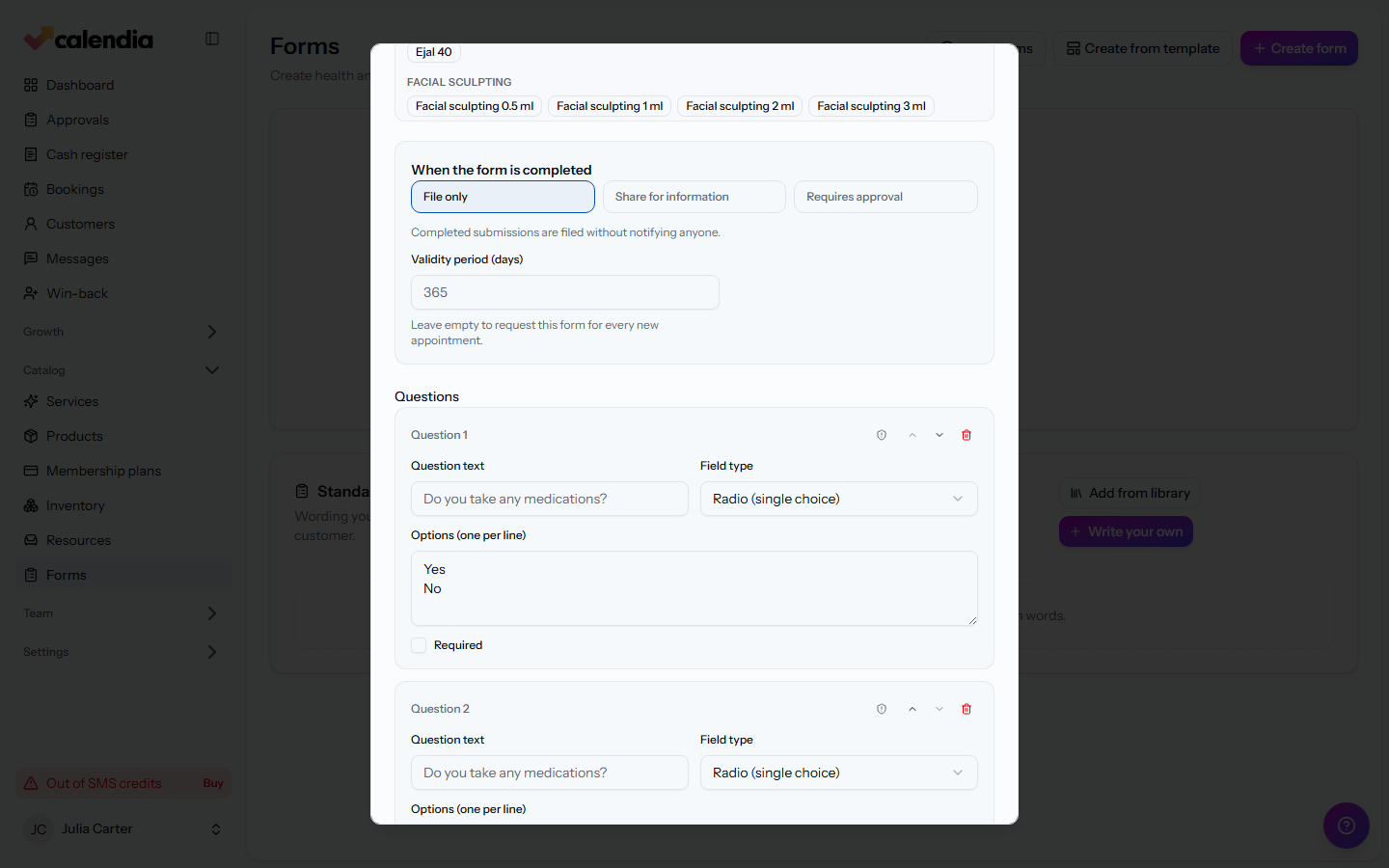
Choose what happens when it's completed
Under When the form is completed, pick one:
- Requires approval — a submission waits for an assigned approver to review it before it's considered valid.
- Share for information — the completed form is available to view, no approval needed.
- File only — completed submissions are filed without notifying anyone.
For Requires approval, choose the Approvers, a Notification channel (Email or Email + SMS), and an optional Message to the approver. You can also require Identity verification, either to log in and open the form or to verify before signing and submitting.
Give someone approval access
An approver must be assigned to the form and have the Approve forms permission for this business. You can grant it under Personnel > Profile > Permissions. Internal employees and external reviewers can both receive it; an external reviewer gets only the approval workspace, not general employee access.
People with this permission see Approvals in the sidebar between Messages and Win-back. The list contains only submissions they are allowed to review for the current business.
Send a form to a customer
- On the form's card, click the send icon.
- Pick the customer.
- Send it via email, via SMS, or generate a Customer-specific link (expires in 7 days) to share yourself.
Review submissions
Click Filled forms to see everything submitted, with its status: Submitted, Pending approval, Approved or Declined. A submission flagged with a contraindication answer shows a Contraindications badge. Click View response from the form or customer profile to see the full answers, photos or signature, identity-verification result, approver messages and the clinical decision. From the calendar, open the appointment and click its form-status badge to open the same response.
If a form requires approval, the assigned approver reviews it from their own review page, can Approve or Decline it, record a medical answer and a message to the customer, or open a secure dialogue with the customer to ask a follow-up question before deciding.
For a form the customer has not submitted, use the appointment's form reminder to resend the secure link or show its QR code. Once a submitted form is waiting for a decision, Nudge approvers reminds its assigned reviewers. If electronic ID is required, the response also shows whether the signer completed that check.
Related articles
Add and manage customers
Build your customer directory, search and filter it, and find customers who haven't booked in a while.
Create services and categories
Add the services you offer, group them into categories, and control what customers see and pay.
Customer profile, history and notes
Everything about one customer lives on their profile — past visits, payments, notes or journal entries, and pending access requests.