Compensation and payroll reports
Set salary and commission rules, adjust an individual's prices, and run a payroll calculation.
The Compensation page is where you set how each employee is paid, adjust what a specific employee charges or earns for a service, and run payroll for a period.
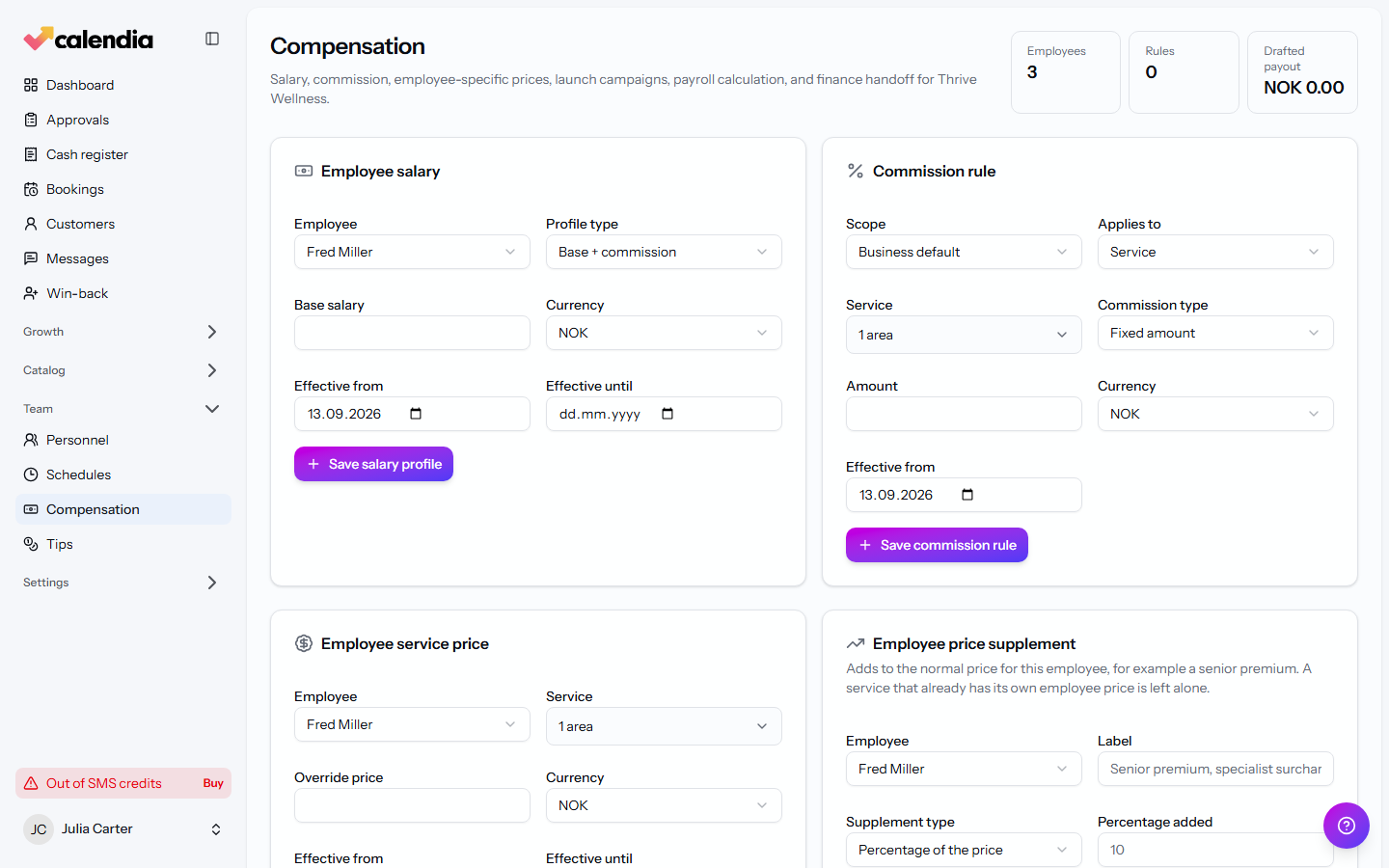
Set an employee's salary profile
- Go to Team > Compensation and find Employee salary.
- Choose the Employee and a Profile type: Fixed salary, Base + commission, Commission only, or Hourly.
- Fill in the Base salary or Hourly rate as needed, set the Currency and Effective from date, then click Save salary profile.
Add a commission rule
Under Commission rule, set the Scope (Business default, or scoped to a Service, Product, or Total income), then a Commission type of Fixed amount or Percent and an Amount. Save it with Save commission rule.
Adjust one employee's price or add a supplement
- Employee service price overrides what a specific employee charges for a specific service — pick the Employee, Service, and Override price, with optional Effective from / Effective until dates.
- Employee price supplement adds a Percentage of the price or a Fixed amount on top, for services you choose or for everything they perform.
- Employee campaign runs a discount (Percent or Fixed price) for one employee, optionally scoped to a service, between a Starts and Ends date.
Run payroll
- Under Run payroll calculation, set the Period starts and Period ends dates, and optionally an Employee filter.
- Click Calculate draft to generate a payroll run.
- From the Payroll runs list, you can Approve, Print, Download Excel, Delete draft, or send it on with Send to finance (use Retry finance sync if a send fails).
Related articles
Roles and permissions
Give each team member a role, then fine-tune exactly what they can see and do.
Schedules and time off
Plan weekly working hours, cover extra locations, and block time off for vacations, sick leave, or one-off closures.
Reports and exports
Download a single PDF report for a period, or generate a full accountant package with receipts, a workbook, and Z reports.