Schedules and time off
Plan weekly working hours, cover extra locations, and block time off for vacations, sick leave, or one-off closures.
Schedules control when each employee is available for bookings. Calendia starts from an employee's regular weekly hours, then layers on overrides and one-off exceptions like vacations.
See the roster at a glance
Go to Team > Schedules to open the Team planner, a grid of who's working, where, over the days ahead. Use the location and date-range controls above the grid to focus on what you need, and Copy week to reuse a previous week's plan.
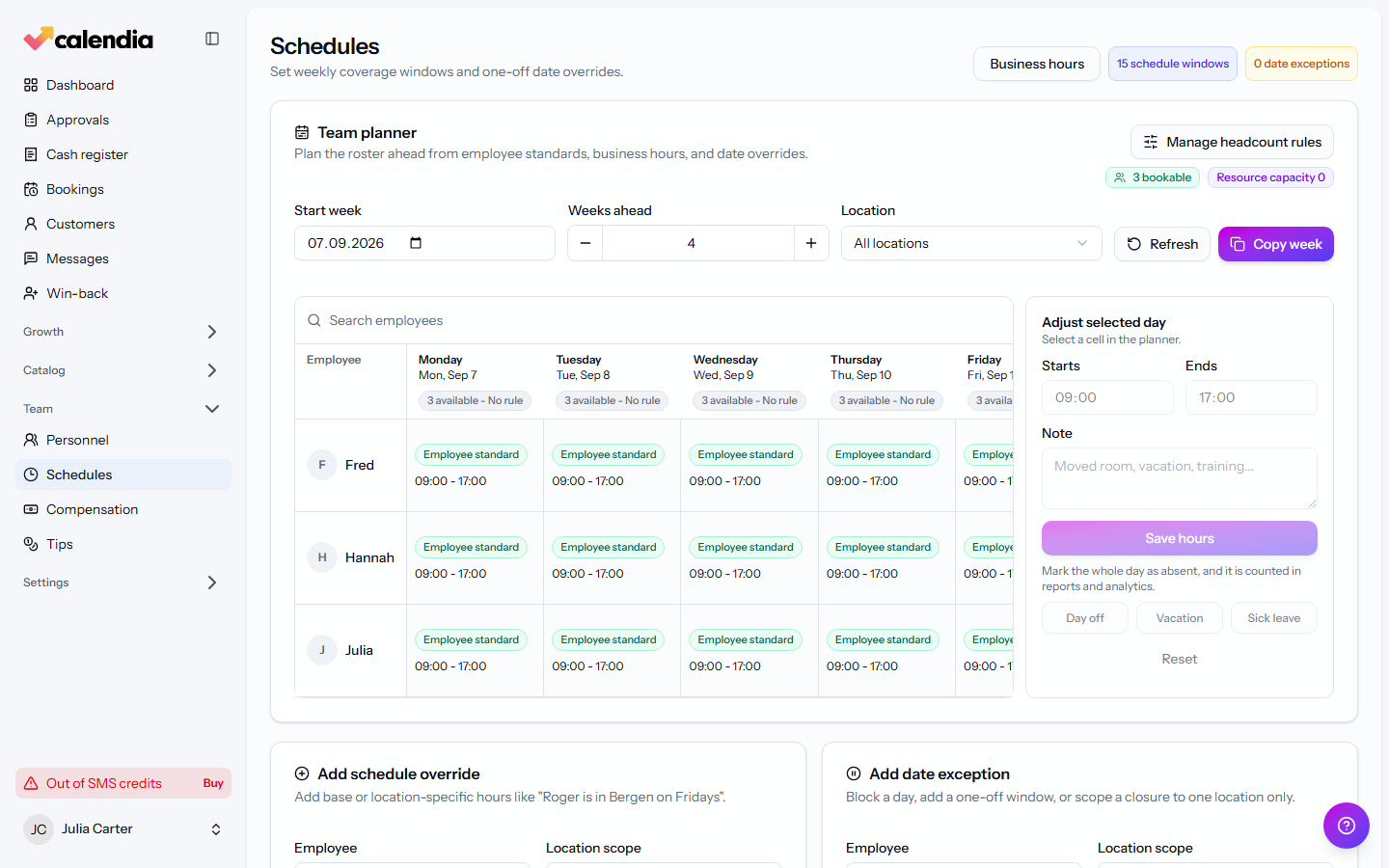
Add a schedule override
Use this for hours that differ from an employee's base schedule, like "Roger is in Bergen on Fridays."
- Under Add schedule override, choose the Employee.
- Pick a Location scope, the Day, and the Starts at / Ends at times.
- Click Save schedule override.
Block time off or add a one-off exception
Use this to close for a day, add an unplanned extra window, or scope a closure to one location.
- Under Add date exception, choose the Employee (or All employees) and a Location scope.
- Pick the Date. For a full-day block, leave the time fields as they are; otherwise set Starts at / Ends at.
- Turn on Available exception only if you're adding one-off availability rather than a closure.
- If you're blocking time, pick an Absence type: Blocked time only, Day off, Vacation, or Sick leave. Typed absences are counted in absence reports and analytics.
- Add an optional Reason, then click Save date exception.
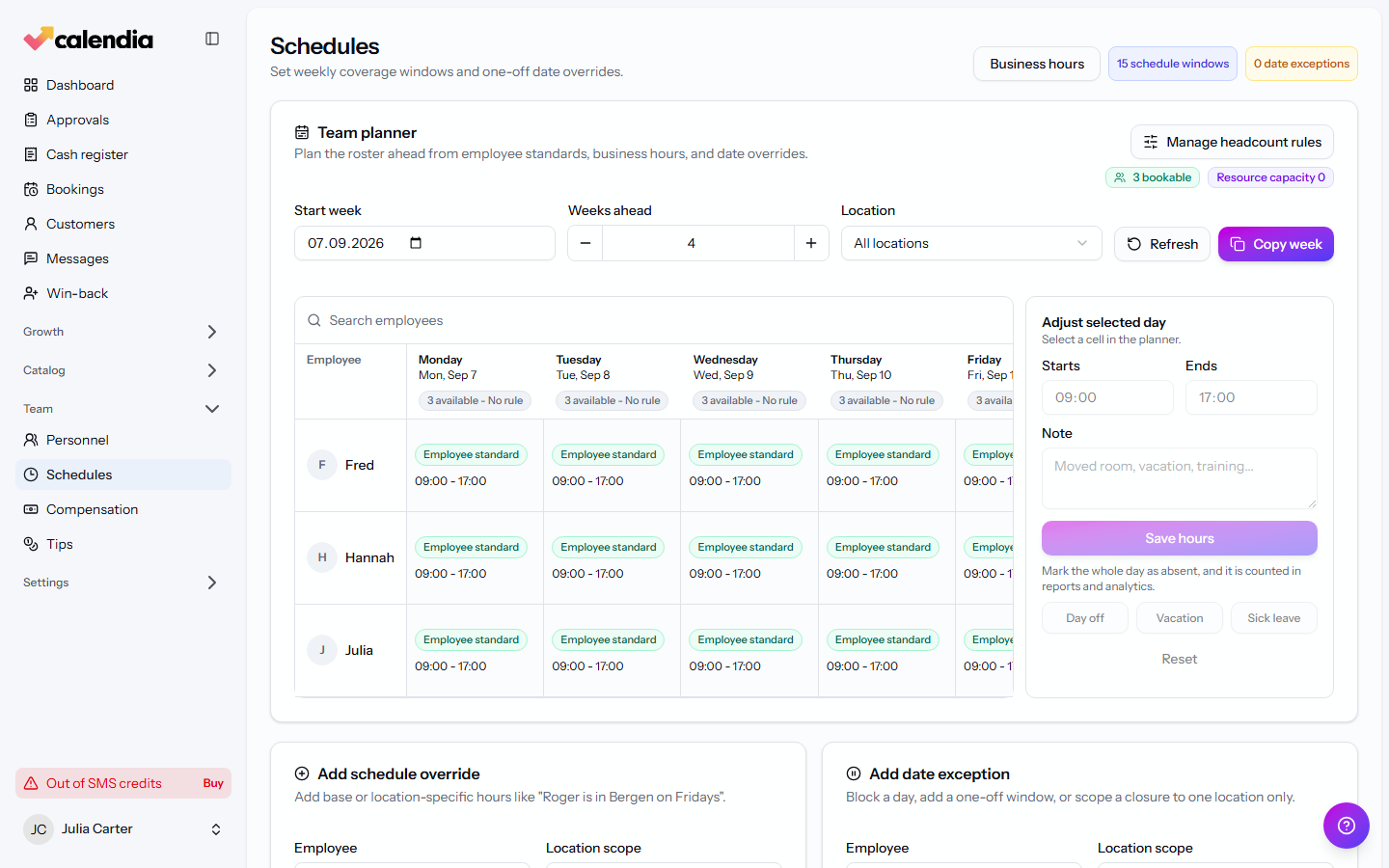
Set minimum and maximum staffing
Click Manage headcount rules on the Team planner to set a default Minimum available and Maximum available headcount, plus overrides per weekday. The planner flags days that fall outside these rules.
Frequently asked questions
What's the difference between a schedule override and a date exception?
A schedule override adds or changes recurring or location-specific working hours. A date exception blocks or adds availability for one specific date, and is what you use for vacations, sick leave, and unplanned closures.
Related articles
Roles and permissions
Give each team member a role, then fine-tune exactly what they can see and do.
Invite your team
Add employees, choose their role, and set whether they can be booked so your calendar is ready for real appointments.
Compensation and payroll reports
Set salary and commission rules, adjust an individual's prices, and run a payroll calculation.