Roles and permissions
Give each team member a role, then fine-tune exactly what they can see and do.
Every employee has a role that sets their default access, and you can fine-tune individual permissions on top of it — useful when someone needs a little more, or a little less, than their role normally allows.
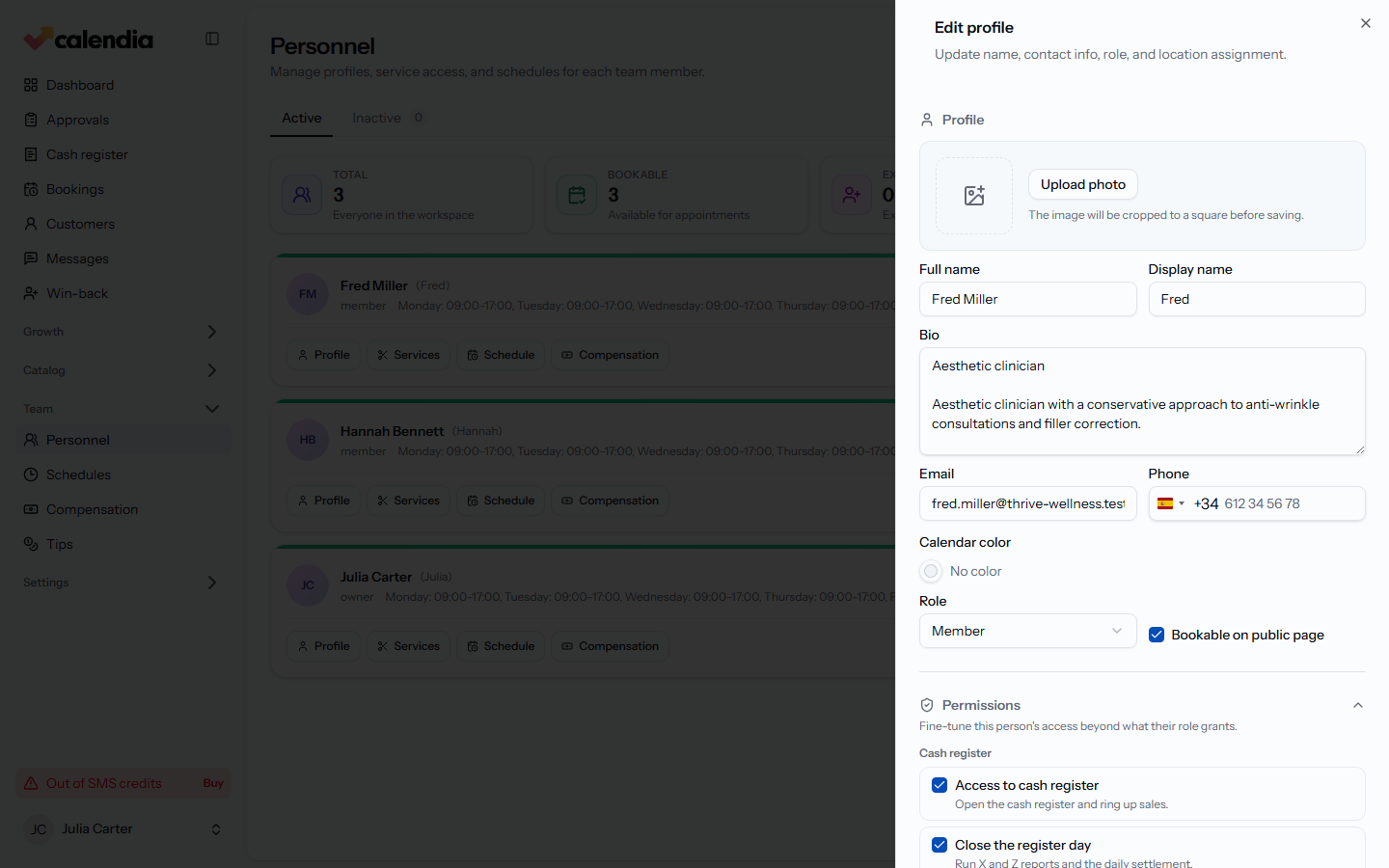
Choose a role
When you add or edit an employee, pick a Role:
- Team member
- Admin
- Owner
- Marketing
- Cash register
- Accountant
The Marketing, Cash register, and Accountant roles do no client-facing work, so they never appear as bookable on the public booking page. For anyone else, the Bookable on public page checkbox controls whether customers can book them.
Fine-tune an individual's permissions
- Go to Personnel and open an employee — click Profile.
- Scroll to Permissions.
- Each permission is grouped by area (for example Cash register, Bookings & customers, Staff & scheduling, Catalog, Growth & marketing, Business & finance). Check or uncheck a box to grant or remove that specific access.
- A permission you've changed from the role default shows an Overridden badge. Click the reset icon next to it to put that permission back to the role default.
Let someone approve forms
The Approve forms permission controls the Approvals workspace and approval decisions. The reviewer must also be assigned as an approver on the form. With the permission, Approvals appears in the sidebar between Messages and Win-back.
You can grant this permission to an internal employee or an external reviewer. External reviewers can receive only this permission for the business they are attached to; it does not grant customer lists, schedules or other employee areas. Removing the permission immediately removes approval access, even if the person was previously assigned.
At businesses using health journaling, staff opening the same response from an appointment or customer record still follow care-team and restricted-journal rules. Assigned external reviewers use only their limited approval page; they do not receive journal access or an emergency-access route.
Frequently asked questions
Can I give someone access to only the cash register?
Yes — assign them the Cash register role. It's built for staff who should ring up sales without seeing the rest of the admin area.
What happens if I change someone's role after setting permission overrides?
The role changes their defaults, but any explicit overrides you've set stay in place until you reset them.
Related articles
Invite your team
Add employees, choose their role, and set whether they can be booked so your calendar is ready for real appointments.
Shared workstation and PIN switch
Let staff on a shared computer switch users with a short PIN instead of signing out and back in.
Schedules and time off
Plan weekly working hours, cover extra locations, and block time off for vacations, sick leave, or one-off closures.