Shared workstation and PIN switch
Let staff on a shared computer switch users with a short PIN instead of signing out and back in.
On a shared reception computer or register, signing all the way out between staff is slow. Calendia's PIN quick switch lets anyone who has already completed a full sign-in with two-factor authentication unlock the browser with just their personal PIN.
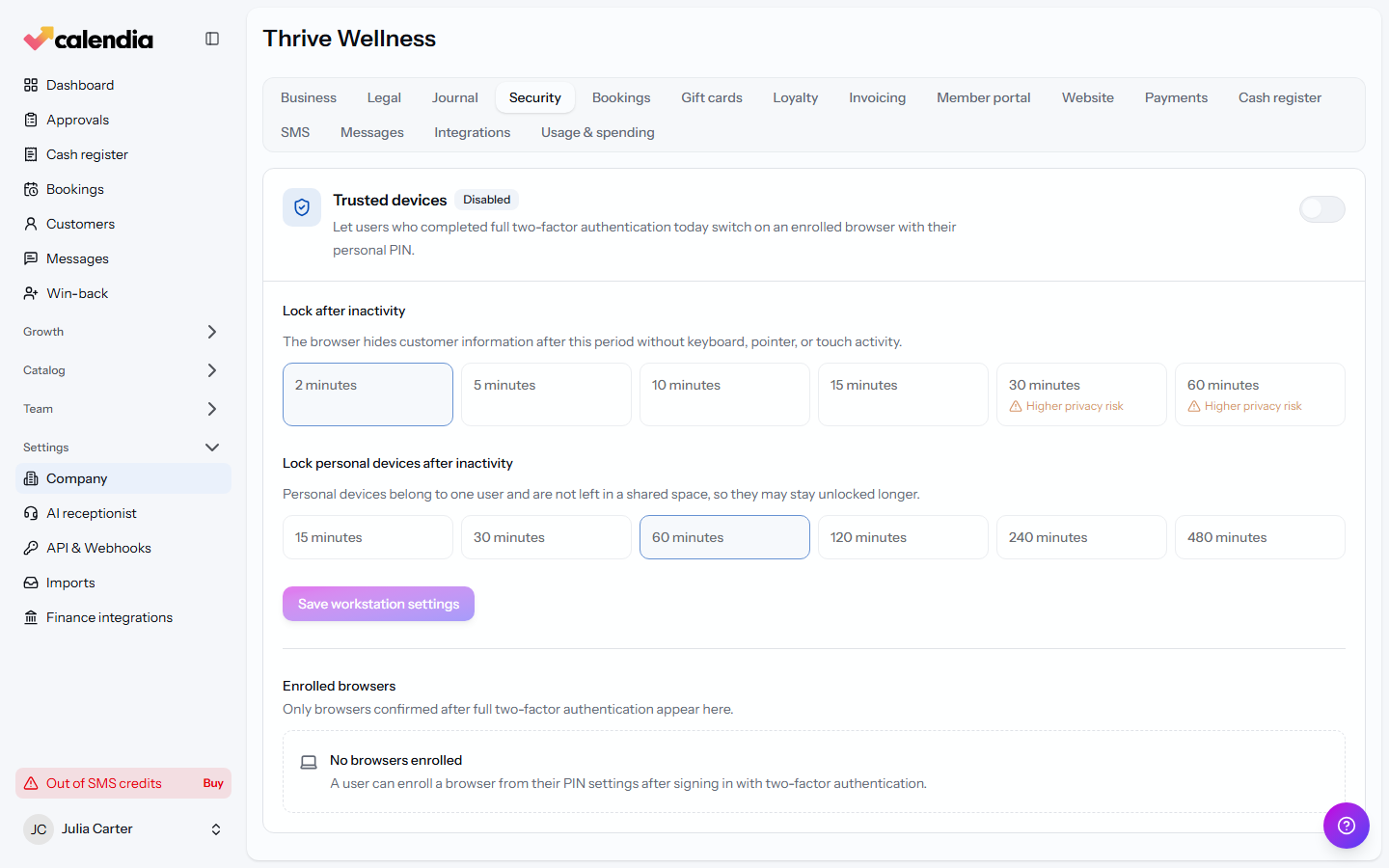
Turn it on for the business
- Go to Company settings, open the Security tab, and find Trusted devices.
- Turn on Allow PIN quick switching.
- Choose how long to Lock after inactivity on a shared device, and separately how long to Lock personal devices after inactivity — personal devices can safely stay unlocked longer since they belong to one person.
Enroll a browser and set a PIN
Each person enrolls their own browser after a full sign-in with two-factor authentication:
- Open the user menu (top-right avatar) and click Enable quick switching on this browser.
- On the Workstation PIN page, choose whether this is a Shared device or Personal device, and optionally name the browser.
- Enter and confirm a New four-digit PIN, then click Create PIN.
Switch users
Once enrolled, open the user menu and click Switch user to lock the workstation. Enter your PIN to unlock as yourself, or use Log in another user to sign in with full credentials instead.
Manage enrolled browsers
Back on Company settings > Security > Trusted devices, the Enrolled browsers list shows every enrolled browser, who enrolled it, and when it was last active. Use Remove browser on one, or Remove all browsers to revoke every enrollment at once — for example after a shared computer is replaced.
Related articles
Roles and permissions
Give each team member a role, then fine-tune exactly what they can see and do.
Security, two-factor, and devices
Turn on two-factor authentication, save your recovery codes, and set up quick switching on a shared workstation.
Open and close the cash register
Open the register before your first sale of the day, run an X report whenever you need a snapshot, and close with a daily settlement so your Z report and cash count line up.