Create services and categories
Add the services you offer, group them into categories, and control what customers see and pay.
Services are the treatments and appointments customers book with you. Setting them up properly — with the right duration, price, and category — keeps your calendar accurate and your online booking page easy to browse.
Add a service
- Go to Catalog > Services.
- Click New service.
- Enter a Name and, optionally, a Description.
- Set the Duration (min) and the Price. Turn on Show as from price if the final price can vary and you want to display it as "from" a starting amount.
- Assign the service to one or more Categories, or click Add category to create a new one without leaving the dialog.
- Choose a Calendar color so the service stands out on the schedule.
- Save the service.
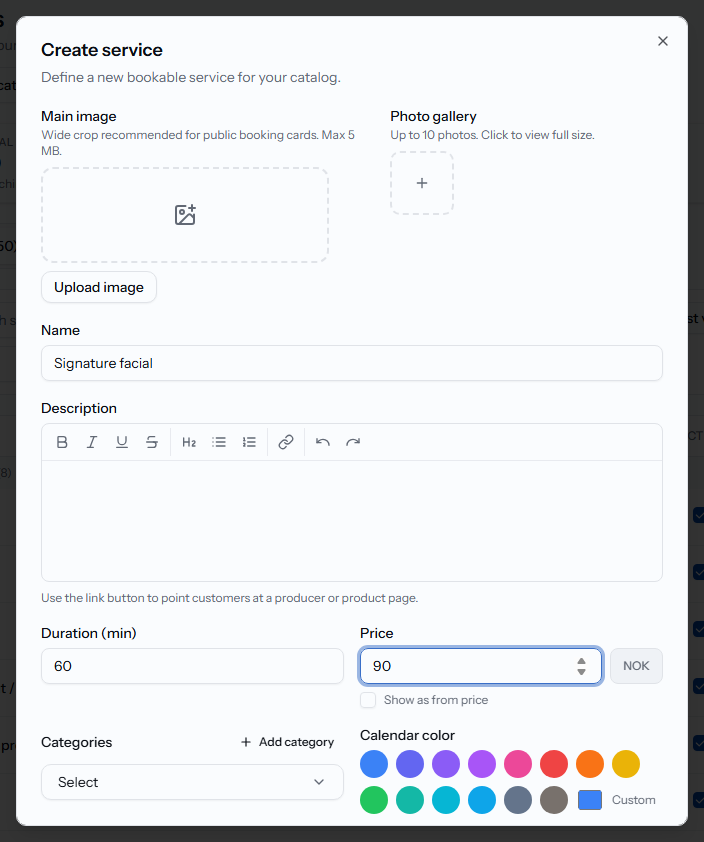
Organize services into categories
Categories group related services on your booking page and in the Services list. Click Add category from the service dialog, or use Create category from the Categories panel to also add a category image. Use Group by category on the Services list to review everything at a glance, and Uncategorized to spot services that still need one.
Set an automatic appointment reminder
Open a service and use Automatic reminder to set Hours before appointment, then choose Email, SMS or Both. Leave the hours blank if this service should not send a reminder.
The Message is optional. When it is blank, Calendia uses the matching email or SMS appointment-reminder template from Company settings > Messages. A message saved on the service overrides the business default for every selected channel. Clear it again whenever you want the service to follow the current business defaults.
A service-specific Message is not translated automatically. Calendia sends it exactly as saved for every selected channel and customer language. If you serve customers in several languages, leave it blank and keep the business templates on Calendia's localized defaults unless the same custom wording suits everyone.
Templates can use appointment placeholders such as {service}, {date_time} and {address}. The address is included for a physical booking location, can fall back to the business address from its legal details when no location is assigned, and is left blank for online appointments or when no physical address is available.
Video consultations and checkout requirements
Each service has a Delivery mode: In-person or Video consultation for appointments that happen online inside Calendia. You can also set a Checkout requirement — No payment required, Deposit required, Full payment required, or Card on file required — and optionally Override price for booking payment if it should differ from the displayed price.
Two more options are worth knowing about:
- Featured service shows the service at the top of booking regardless of its category.
- Members only hides the service unless the customer has an active membership, and lets you set a separate Member price.
Frequently asked questions
Can I bulk-add several services at once?
Yes. Click Add multiple services on the Services page to create several from a template or a pasted price list, instead of adding them one by one.
Can I run a discount on a service?
Yes — see Service packages and pricing for time-limited pricing, packages, and campaigns.
Related articles
Service packages and pricing
Sell multi-visit packages, bundle several services together, and run time-limited or last-minute discounts.
Resources and equipment
Set up rooms, chairs, and equipment that services need, and control how many bookings can share them at once.
Invite your team
Add employees, choose their role, and set whether they can be booked so your calendar is ready for real appointments.