Leads
Track everyone who showed interest but hasn't booked yet, and follow up until they convert.
A lead is someone who showed interest — through a campaign page, your website, or an ad — before they became a customer. The Leads page keeps them all in one place so nobody falls through the cracks.
Find and filter leads
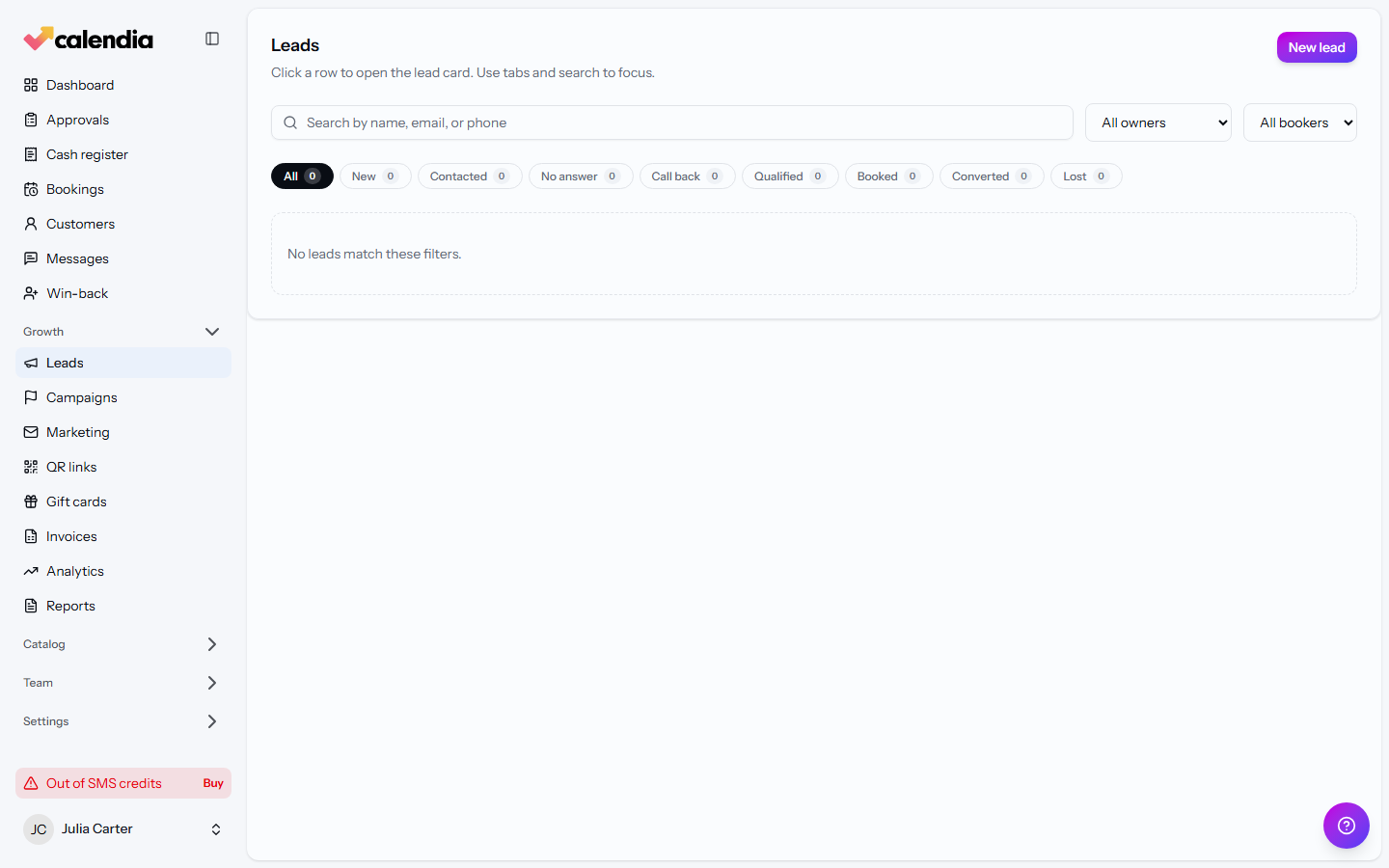
Go to Growth > Leads. The list shows Name, Email, Phone, Status, Owner, Booked by, Campaign, Booking outcome, Next follow-up, and Last activity for each lead. Use the search box and the owner/booker filters above the list to narrow it down.
Work a lead
Click a lead to open its detail panel:
- Set its Status and assign an Owner.
- Set a Next follow-up date so it doesn't get forgotten.
- Add Notes, then click Save lead.
- Check Interests to see which service, bundle, or campaign they responded to, and Where they came from — Campaign page, Website, Booking, Email, Flyer / QR, or Referral.
- Log a call or message in the Activity timeline with Add note.
Connect an ad account as a lead source
From Growth > Campaigns, open Connections to add a Meta / Facebook or Google Ads lead source connection. Leads captured through the connected account sync in automatically and show up here with their originating campaign.
Frequently asked questions
Does every lead have to go through a campaign?
No. Leads can also come from your Calendia website's lead capture form, a QR link, or a connected ad account — the Where they came from field on each lead shows its actual source.
Related articles
Campaigns and promotions
Build a campaign landing page to capture leads, share it, and run promotion or referral codes.
QR links
Turn any URL into a tracked, scannable link for flyers, posters, or your booking page.
Win back customers after a no-show or cancellation
Reach out to customers whose last appointment was a no-show or a cancellation, waive a fee, or deal with repeat offenders.