QR links
Turn any URL into a tracked, scannable link for flyers, posters, or your booking page.
QR links create a short, trackable URL — and a matching QR code — for any destination: your booking page, a campaign, a supplier catalogue, or an influencer's bio link.
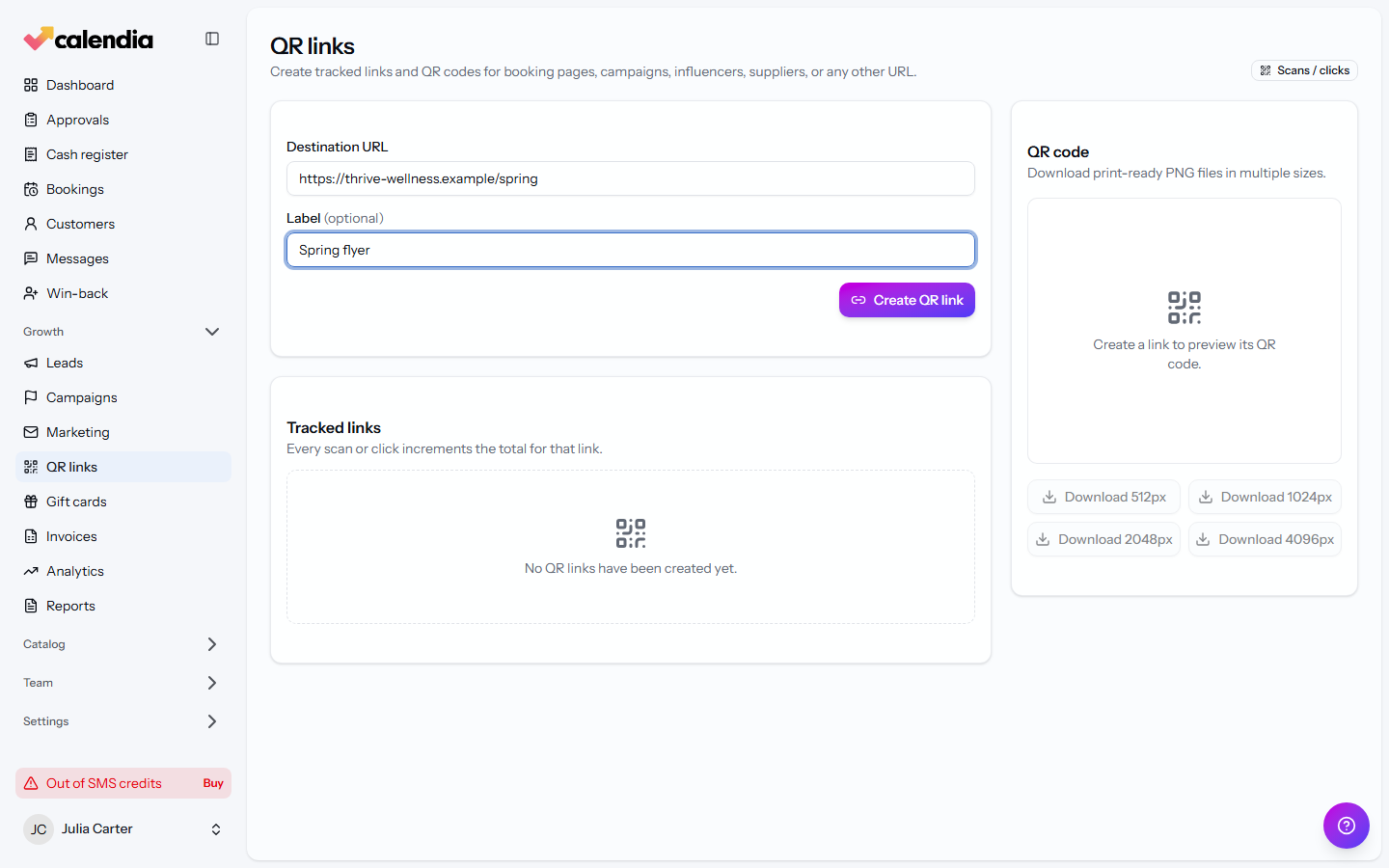
Create a QR link
- Go to Growth > QR links.
- Enter the Destination URL you want the link to open.
- Add an optional Label to remind yourself what it's for (for example "Spring flyer" or "Supplier catalog").
- Click Create QR link.
Download and use the QR code
Select a link from Tracked links to see its QR code preview. Click QR code to download print-ready PNG files in multiple sizes for flyers, posters, or business cards.
Track performance
Each tracked link shows its Scans / clicks count, so you can compare which flyer, poster, or placement is actually driving traffic.
Frequently asked questions
Does a QR link expire?
No. A QR link keeps working, and keeps counting scans and clicks, until you remove it. That makes it safe to print on something long-lived, like a window sticker or a business card.
Can I point a QR link at a campaign instead of my booking page?
Yes — paste the campaign's own link as the Destination URL. That way you get both the campaign's own visit tracking and a QR-specific scan count for the physical material it's printed on.
What's the difference between a QR link and the shareable link on a campaign?
A campaign's Share button generates a link and QR code scoped to that one campaign, with UTM fields built in. QR links are more general-purpose — use them for anything that isn't tied to a specific campaign, like your booking page or a supplier's catalogue.
Related articles
Campaigns and promotions
Build a campaign landing page to capture leads, share it, and run promotion or referral codes.
Your Calendia website
Build your public homepage from ready-made templates and drag-and-drop sections, preview it on desktop and phone, and publish when it's ready.
Share your online booking page
Find your public booking link, embed a booking widget on your own website, and generate a trackable QR code to share it.