Loyalty and stamp cards
Reward repeat customers automatically after a number of visits, a spend total, or with ongoing credits.
Calendia's loyalty program rewards customers automatically as they keep coming back — no punch cards to track by hand. A classic "book 5, get one discounted" stamp card is one way to set it up; ongoing credits are another.
Turn on the loyalty program
- Go to Company settings and open the Loyalty tab.
- Turn on Enable customer loyalty rewards. Logged-in customers will see their progress on the public booking page.
- Choose a Reward type:
- Percent discount on next appointment
- Fixed amount discount on next appointment
- Gift or product reward — set a Gift name
- Spend earns credits — an ongoing credit balance instead of a one-off reward
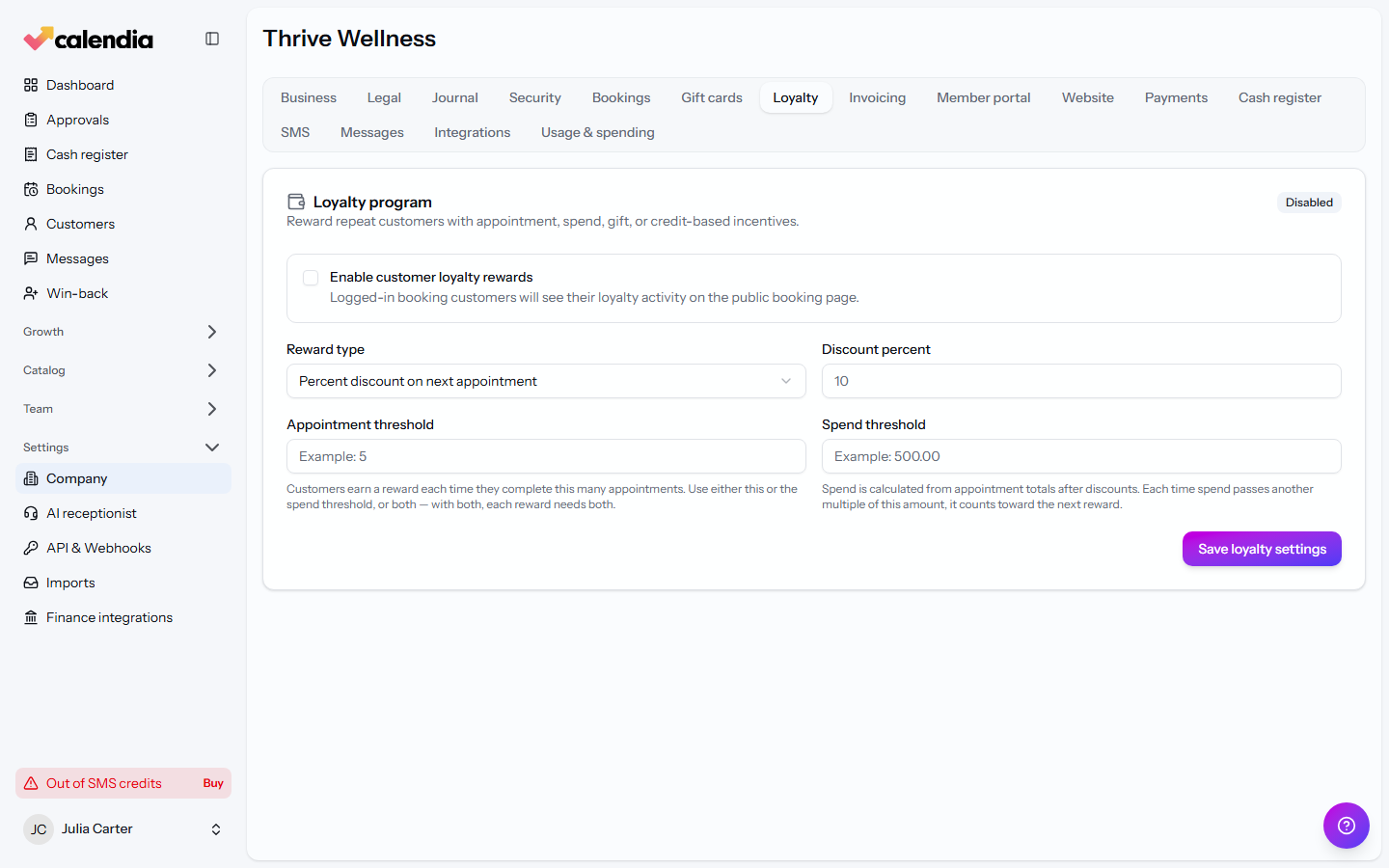
Set the stamp-card threshold
For the discount and gift reward types, set an Appointment threshold (customers earn a reward every time they complete that many appointments) and/or a Spend threshold. If you set both, a customer needs to hit both to earn the reward.
Set up ongoing credits instead
With Spend earns credits, there's no threshold — credits accrue continuously. Set Credits earned per 1 currency spent and the Discount value per credit to define what each credit is worth when redeemed.
Save your changes with Save loyalty settings.
Related articles
Campaigns and promotions
Build a campaign landing page to capture leads, share it, and run promotion or referral codes.
Win back customers after a no-show or cancellation
Reach out to customers whose last appointment was a no-show or a cancellation, waive a fee, or deal with repeat offenders.
Member portal and memberships
Let customers create an account to manage bookings and chat with you, and sell recurring membership plans with discounts and included services.