Your Calendia website
Build your public homepage from ready-made templates and drag-and-drop sections, preview it on desktop and phone, and publish when it's ready.
Calendia can host a public Company website for your business — a homepage you build from sections, with a live preview as you edit and a Book button that takes visitors straight to your online booking.
Start from a template
- Go to Company settings and open the Website tab.
- Click Templates and pick a starter template for your industry — hair salon, barbershop, beauty studio, spa, clinic, dental, therapy, personal trainer, yoga studio, tattoo, photography, consultant, pet grooming, or a simple one-page site.
- Look through the preview on the right, then click Use this template.
- Replace the example text with your own and click Save.
Templates fill in the text in your language, use your own services, and set up the page menu for you. Applying a template replaces the sections on your page — use Undo if you change your mind.
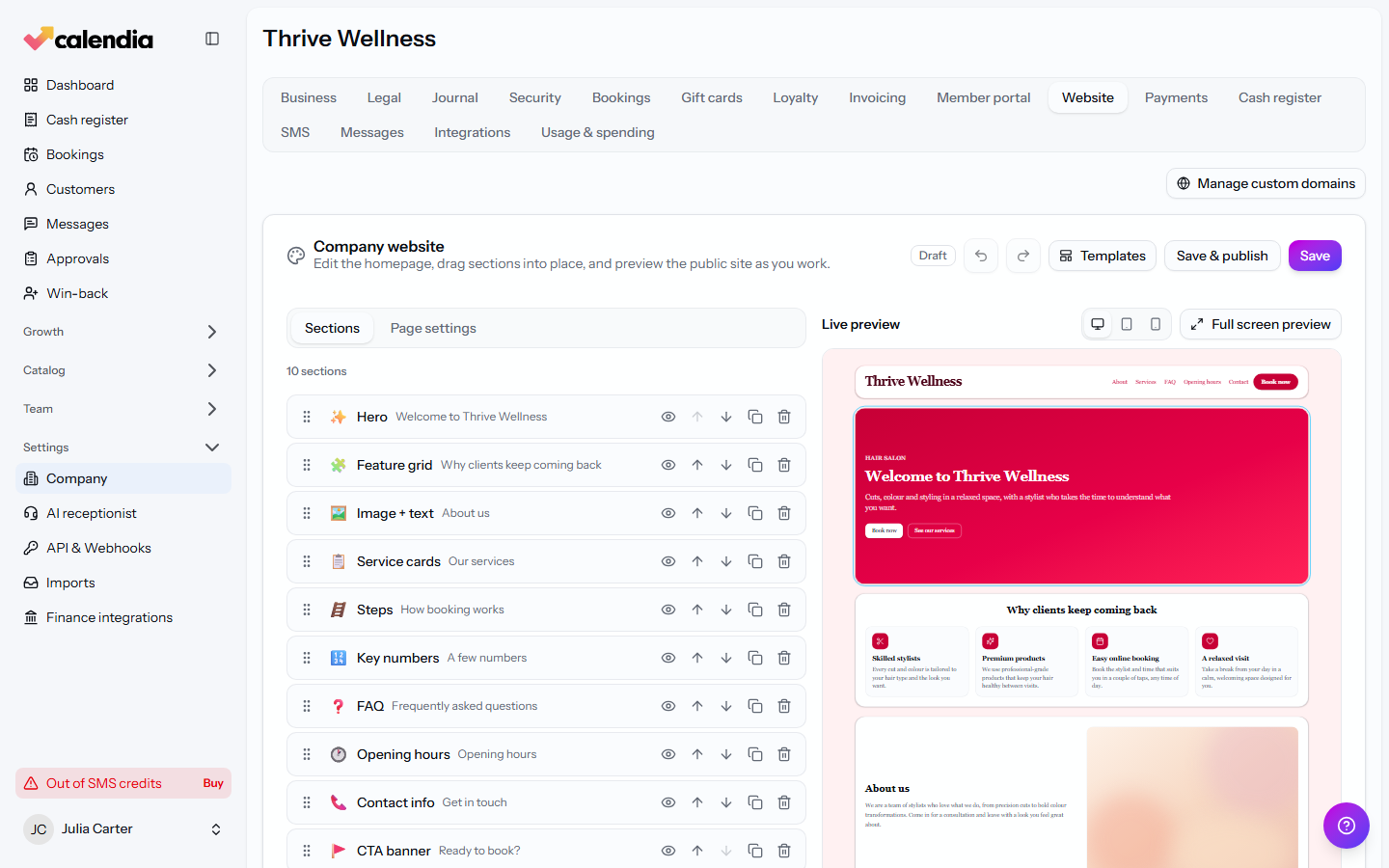
Edit your sections
Each row in the Sections list is one block on your page. Click a row to open it and edit its content — or click the block in the live preview to jump straight to it.
- Add a section with the + buttons between rows. Search the list or browse by category: hero, image + text, feature grid, steps, key numbers, FAQ, image gallery, video, service cards, price list, team, reviews, opening hours, map, contact info, social links, and more.
- Reorder with the drag handle or the arrow buttons.
- Duplicate, hide or delete a section with the buttons on its row. A hidden section stays in the editor but is not shown to visitors.
- Undo and Redo at the top step back and forward through your changes.
Add a page menu
Open a section and fill in Show in the page menu as — for example Services, Prices or Contact. Those sections appear as links in the header of your website, so visitors can jump straight to them.
Custom HTML
Need something the built-in sections don't cover — a newsletter sign-up form, a review widget, or a social feed? Add a Custom HTML section and paste your code. HTML, CSS and JavaScript all work.
Page settings
The Page settings tab controls everything around your sections:
- Basics — the page title, the page address, and whether the page is published.
- Header & menu — choose the header style, keep it visible while scrolling, show the page menu, and add a Book button. On phones you can also show a Book button bar at the bottom of the screen.
- Footer — a short closing text, such as your organisation number or address.
- Typography — a modern, classic or friendly look for the whole page.
- Search engines & sharing — the description and image shown when your page appears on Google or is shared on social media.
Preview and publish
The Live preview shows the page exactly as visitors will see it. Switch between desktop, tablet and phone, or open the Full screen preview. Videos and maps are only loaded from YouTube, Vimeo or Google when a visitor presses play, which keeps the page fast and privacy-friendly.
When you're happy, click Save & publish. Use View site to open the live page.
Reuse a layout
In Templates → My templates you can save your current page as a template and load it again later — handy if you rebuild your homepage for a seasonal promotion and want your usual layout back afterwards.
Use your own domain
Click Manage custom domains on the Website tab to point a domain you own at your Calendia website instead of the default address. See Custom domain for the DNS steps.
Frequently asked questions
How is this different from a campaign?
Your website is your permanent homepage. A campaign is a separate landing page you spin up for one specific promotion, with its own tracking and, optionally, its own colors.
Will a template overwrite my existing page?
It replaces the sections in the editor, but nothing is published until you click Save. Use Undo to get your previous page back.
Related articles
Share your online booking page
Find your public booking link, embed a booking widget on your own website, and generate a trackable QR code to share it.
Campaigns and promotions
Build a campaign landing page to capture leads, share it, and run promotion or referral codes.
Use a custom domain
Serve your booking page or website from your own domain, such as www.yoursalon.com, instead of a Calendia address.