Invite your team
Add employees, choose their role, and set whether they can be booked so your calendar is ready for real appointments.
Add your staff so you can start assigning them to services and building their schedules.
Add an employee
- Go to Personnel.
- Click Add employee.
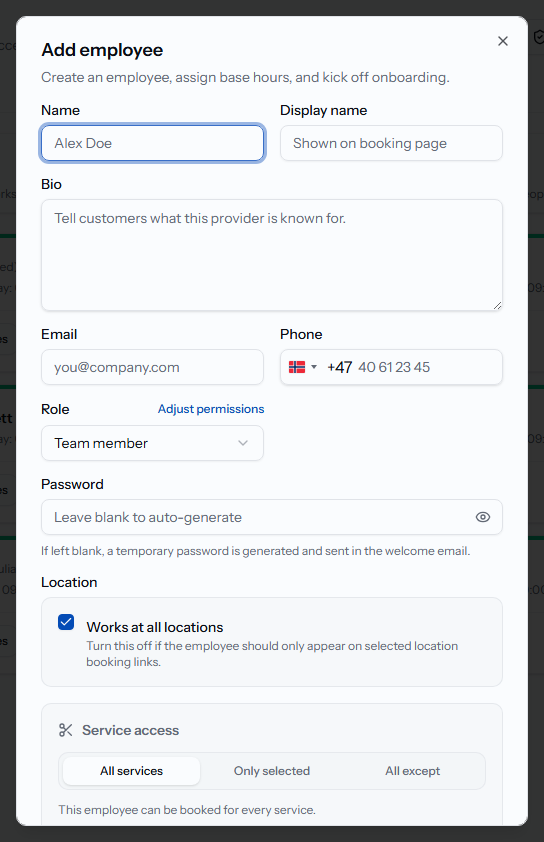
- Fill in their Name, Display name (shown on the booking page), Bio, Email, and Phone.
- Choose a Role: Team member, Admin, Owner, Marketing, Cash register, or Accountant.
- Set a Password, or leave it blank — a temporary password is then generated and sent in the welcome email.
- Choose which locations they work at, then set their starting schedule and any bookable days.
- Click Create employee.
Who shows up as bookable
Whether someone can actually be booked for appointments depends on their role and their schedule:
- Marketing, Cash register, and Accountant roles are never bookable — they're for people who don't perform services.
- Team members, Admins, and Owners are bookable by default, as long as they have working hours set and no absence covering that day.
The Bookable count on the Personnel page tells you how many of your team can currently take appointments.
Next steps
Once your team is added, fine-tune what each person can see and do in Roles and permissions, and set their working hours in Schedules and time off.
Related articles
Roles and permissions
Give each team member a role, then fine-tune exactly what they can see and do.
Schedules and time off
Plan weekly working hours, cover extra locations, and block time off for vacations, sick leave, or one-off closures.
Welcome to Calendia
A quick tour of the sidebar, your calendar dashboard, and where to find help when you need it.