Security, two-factor, and devices
Turn on two-factor authentication, save your recovery codes, and set up quick switching on a shared workstation.
Two-factor authentication (2FA) adds a second check beyond your password, using a code from an authenticator app on your phone.
Turn on two-factor authentication
- Open Settings from your account menu, then go to Two-Factor Auth.
- Click Enable 2FA.
- Scan the QR code with an authenticator app (or enter the manual setup key if you can't scan), then confirm setup.
- Save your recovery codes somewhere safe — you'll need one if you ever lose access to your authenticator app.
Once enabled, you'll see a badge confirming it's Enabled, and you can view or Regenerate Codes for your recovery codes at any time.
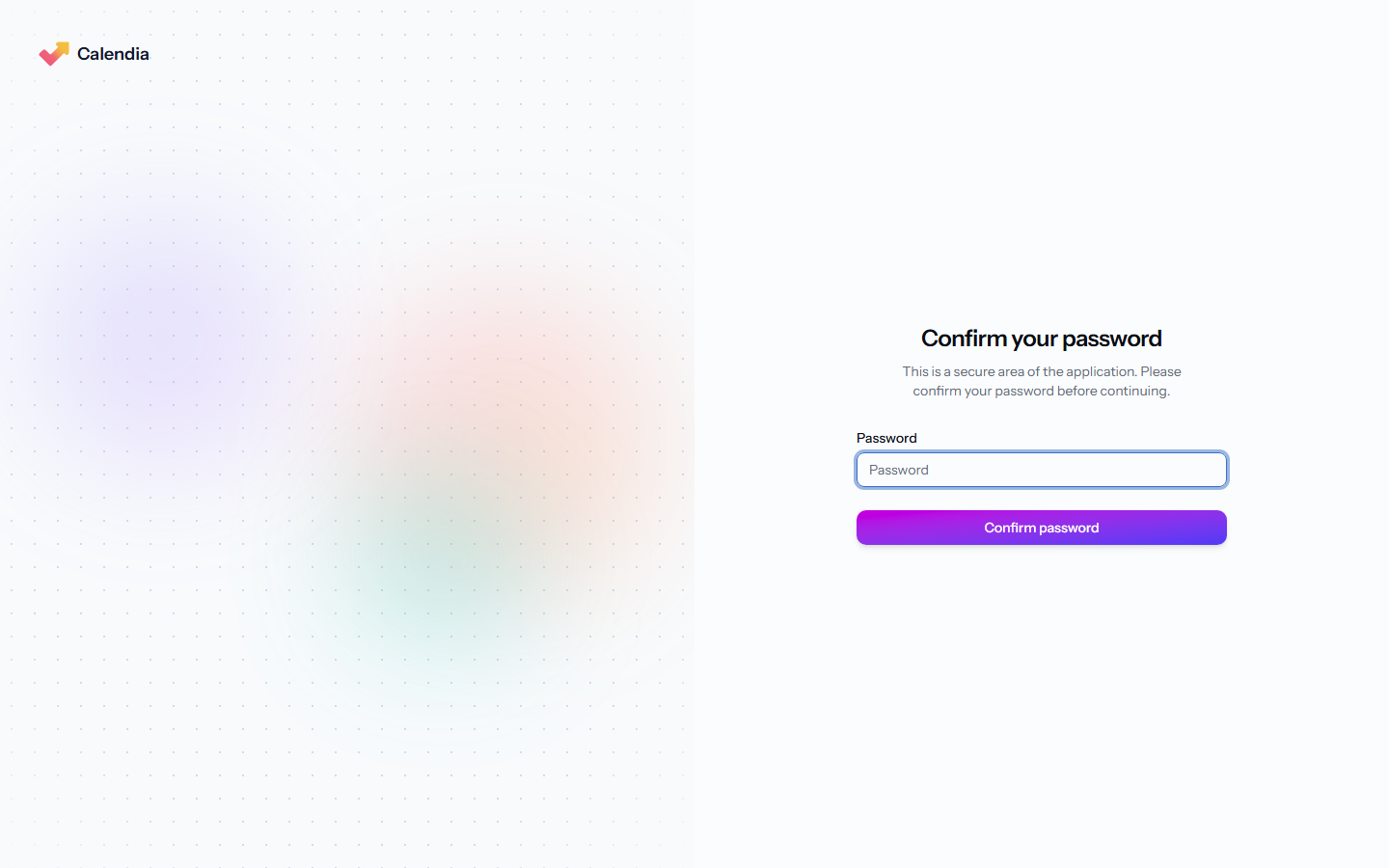
If you have just signed in with your password and Calendia sends you straight to required 2FA setup, that recent password check is reused. You can scan the QR code and finish setup without entering the same password again. A social login, recovery-code challenge, trusted-device PIN or support session does not count as a fresh password check and may still show Confirm password.
Turn off two-factor authentication
If your business doesn't require it, open Settings > Two-Factor Auth and click Disable 2FA.
Use a recovery code to sign in
If you lose access to your authenticator app, choose to log in using a recovery code on the two-factor prompt instead of an authentication code, and enter one of the codes you saved when you set up 2FA.
The sign-in, password confirmation, forgotten-password and reset-password screens follow your selected language. Password-reset success and error messages appear in that language too.
Shared workstation quick switching
If a device is shared between staff — for example a reception iPad or a till — you can turn on PIN quick switching so people can swap accounts on that device without a full login each time. Open your account menu and select Enable quick switching on this browser, or visit Workstation PIN. Once it's active, use Switch user from the account menu to lock the device between staff.
Frequently asked questions
Does Calendia support passkeys?
Not currently — sign-in uses a password, with optional two-factor authentication for an extra layer of security.
Can I see which devices are signed in?
Trusted-device and shared-workstation settings are managed per device from the account menu and Workstation PIN rather than a full session list.