Products and inventory
List retail products for sale, and track the consumable stock your services use up.
Calendia separates two related things: Products are what you sell to customers (in the shop or at checkout), and Inventory is the consumable stock your services use up behind the scenes, like the products your team goes through during an appointment.
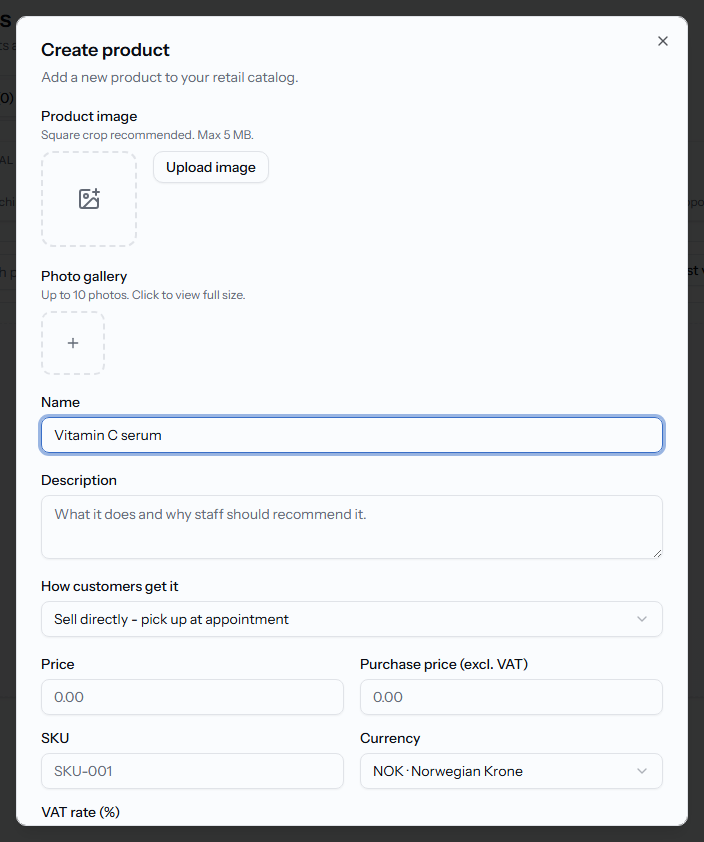
Add a product
- Go to Catalog > Products and click New product.
- Enter a Name and Description.
- Under How customers get it, choose Sell directly (you fulfil the order yourself, pick up at appointment) or Send to external link for an External recommendation you don't stock — this needs a External / affiliate link.
- Set the Price, Purchase price (excl. VAT), SKU, Currency, and VAT rate (%).
- Optionally set a Member price for customers with an active membership, and assign one or more Categories.
- Make sure Active in catalog is checked, then save.
Track consumable stock
- Go to Catalog > Inventory and click New inventory item.
- Enter a Name, Unit, Package label, Package size, and Initial packages.
- Set a Low stock threshold and, optionally, turn on Email supplier on low stock.
- Add the Supplier and Supplier email if you want to reorder from them directly.
Stock goes down automatically as appointments that use the item are completed. Use the Low stock filter on the Inventory page to see what needs reordering.
Restock or adjust stock manually
- Click Restock on an item to enter the Package count received (Calendia works out the Calculated quantity), with an optional Note.
- Click Manual adjustment to correct a count directly, choosing Manual adjustment or Wastage as the reason.
Order from a connected supplier
If a supplier is connected to your workspace, click Supplier shop from the Inventory page to browse their catalogue, add items, and Request order. When the order ships, open Incoming stock and click Mark as in stock to add the received quantities to your inventory automatically.
Frequently asked questions
Do products and inventory items affect each other?
Not directly. A product is something you sell; an inventory item is stock consumed while delivering a service. Products used at checkout do not automatically deduct from inventory unless a service is configured to use that inventory item.
Related articles
Create services and categories
Add the services you offer, group them into categories, and control what customers see and pay.
Sell services and products
Build a sale in the register workspace — add services or products, attach a customer, apply a discount, and take payment.
Resources and equipment
Set up rooms, chairs, and equipment that services need, and control how many bookings can share them at once.