Resources and equipment
Set up rooms, chairs, and equipment that services need, and control how many bookings can share them at once.
Resources are the rooms, chairs, or equipment your services depend on — a laser machine, a treatment room, a manicure station. Calendia can block them on the calendar the same way it blocks an employee, so you never double-book a room that's already in use.
Add a resource
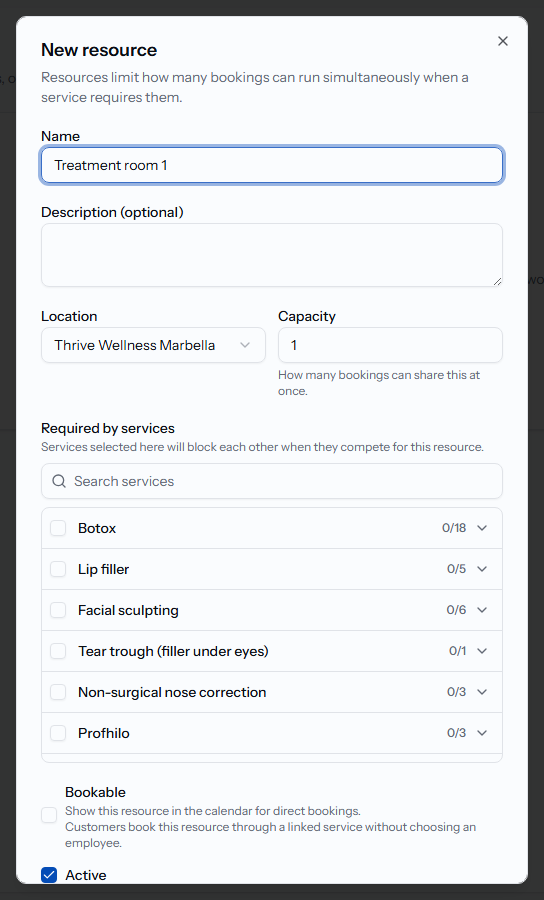
- Go to Catalog > Resources and click New resource.
- Enter a Name (for example "Laser room" or "Chair 1") and an optional Description.
- Pick a Location if you have more than one.
- Set the Capacity — how many bookings can share this resource at once.
- Turn on Bookable and Active, then save.
Require a resource for a service
- Open the service in Catalog > Services.
- Find Required resources and select the rooms or equipment it needs. Each option shows its Capacity.
- If a selected resource is bookable on its own (like an unattended machine), turn off Requires an employee to allow self-service bookings.
- Optionally set a Resource cooldown (min) to keep the resource unavailable for a period after the appointment ends, for example to allow cleaning.
Frequently asked questions
Can two services share the same resource?
Yes. Select the same resource on multiple services. If its capacity is 1, only one of those bookings can happen at a time; a higher capacity allows that many simultaneous bookings.
Does deactivating a resource cancel existing bookings?
No. Turning off Active or Bookable only stops it from being offered for new bookings — it does not affect appointments already scheduled.
Related articles
Create services and categories
Add the services you offer, group them into categories, and control what customers see and pay.
Schedules and time off
Plan weekly working hours, cover extra locations, and block time off for vacations, sick leave, or one-off closures.
Service packages and pricing
Sell multi-visit packages, bundle several services together, and run time-limited or last-minute discounts.