Open and close the cash register
Open the register before your first sale of the day, run an X report whenever you need a snapshot, and close with a daily settlement so your Z report and cash count line up.
Every business day at the register has the same shape: open it, sell against it, and close it with a daily settlement. Closing properly matters because it produces your Z report — the fiscal record of the day that your books and, in some countries, the tax authority rely on.
Before you start
- A cash drawer (or operator-based cash handling) must already be set up under Cash register in Company settings.
- Closing the register requires permission to settle the cash register day. Staff without it can still sell but won't see Daily settlement or Fiscal reports.
Opening the register
- Open Cash register from the sidebar.
- If a physical drawer is connected, click Open cash drawer in the cash panel to open it before you take the first payment.
Checking progress during the day: the X report
An X report is a read-only snapshot of the register's activity so far today — sales, refunds, VAT, drawer openings. It never closes anything, so you can run it as often as you like.
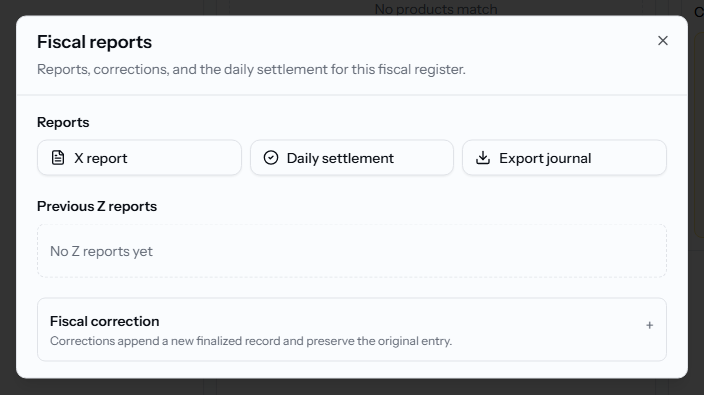
- In the register workspace, click Fiscal reports.
- Click X report.
Closing the register: daily settlement
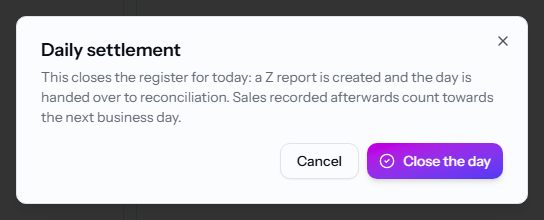
Daily settlement closes the business date, creates the Z report, and hands the day over to reconciliation. Sales made afterwards belong to the next business day.
- Click Daily settlement (in the register workspace, or from the Fiscal reports dialog).
- Count the physical cash in the drawer and enter it under Counted cash. The dialog shows the Expected balance and the resulting Difference.
- Click Close the day.
Finding the Z report
Every Z report is stored and can be reopened at any time from Fiscal reports > Previous Z reports. Staff who can only settle the day (not manage the register) see their two most recent Z reports there; the full history, plus the electronic journal export, is only visible to a cash register manager — see Reports and exports for pulling a whole period at once, including the Z-report bundle.
Frequently asked questions
What happens if nobody closes the register?
Calendia closes it for you automatically overnight. If that didn't run for some reason, the register closes the missed business date itself — oldest first — the next time a sale is started, and only refuses the new sale if it genuinely can't close (for example, a sale left open from a previous day), telling you why.
Can I delete an unused location and its cash register?
Yes. In Company settings > Business locations, choose Delete for an unused location. Its unused registers, drawers and workstations are removed together. Bookings, pending payment checkouts, Z reports, journal entries and other historical records prevent deletion; the dialog explains why. Use Deactivate for locations with history. See Set up your business profile.
Related articles
Sell services and products
Build a sale in the register workspace — add services or products, attach a customer, apply a discount, and take payment.
Receipts and refunds
Print or email a receipt, find any past sale in the receipt archive, and issue a refund without ever editing the original document.
Manage cash counts, transfers, and deposits
Pair a physical drawer with the till it sits on, record cash counts, move cash between accounts, and prepare bank deposits.