Manage cash counts, transfers, and deposits
Pair a physical drawer with the till it sits on, record cash counts, move cash between accounts, and prepare bank deposits.
Cash management is where you account for physical cash once it's in a drawer — separate from ringing up sales. From the register workspace, click the calculator icon (Count cash) next to the account selector to open it, then switch between the Movements, Counts, Transfers, and Bank deposits tabs.
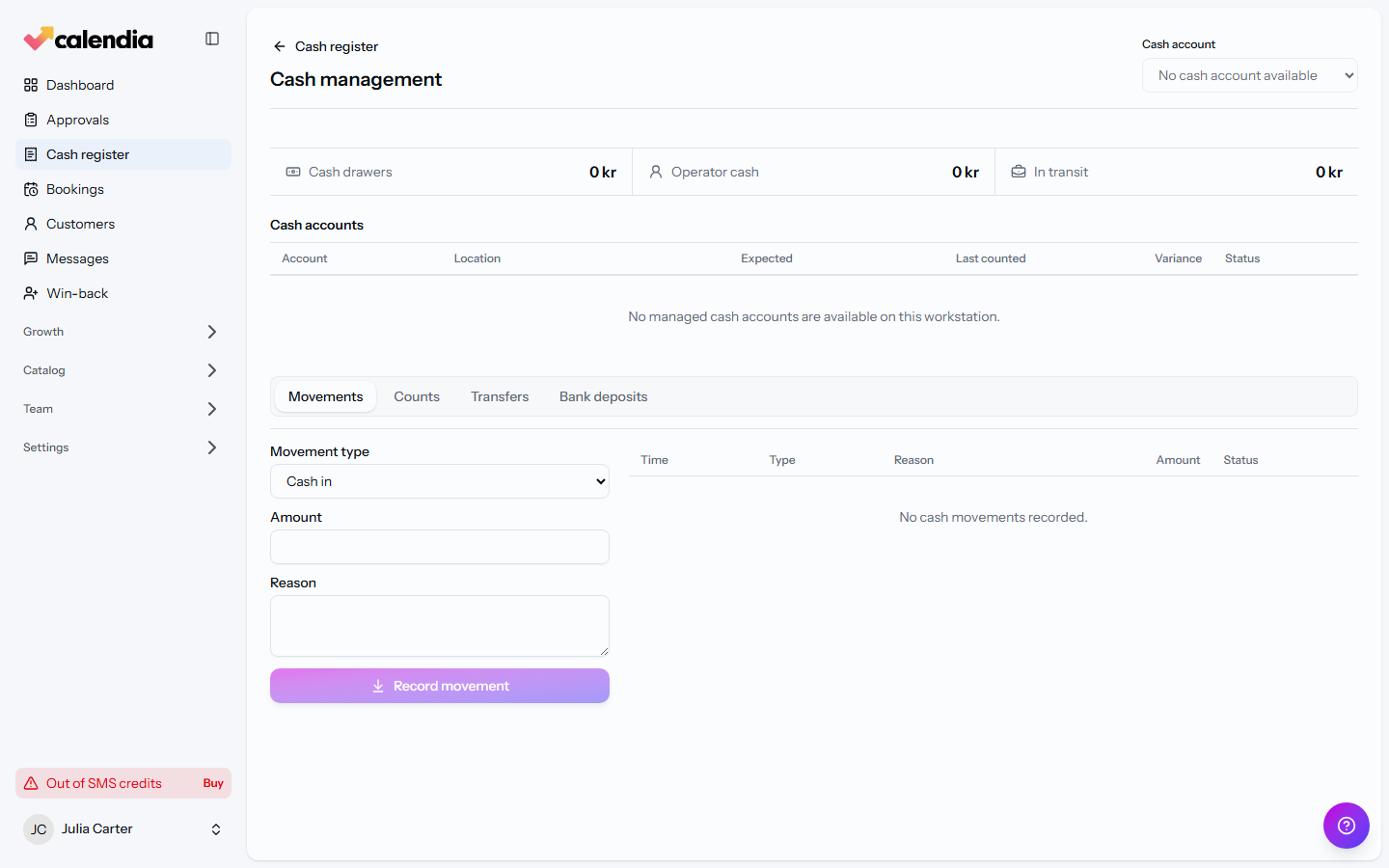
Set up and pair a physical drawer
Before a drawer can hold cash, it must be added and paired with the workstation physically connected to it.
- In Company settings, under Cash drawers, click Add drawer and fill in its name, location, and currency.
- Under Cash drawer bridge, download and install the local bridge on the till's PC.
- Back on the drawer's row, click Pair workstation and follow the pairing dialog.
Each physical drawer must be paired with the workstation actually connected to it — the bridge can only be bound to one drawer at a time.
Record the first cash count
A newly created drawer shows Initial count required until its first count is recorded.
- Click Start initial count on the drawer's row.
- Count all the physical cash in the drawer, then enter the total under Counted amount and submit.
Count cash and handle a difference
- Open the Counts tab and select the account to count.
- Enter the Counted amount; the Expected balance and Variance are shown as you type. Add a Reason if there's a difference.
- Click Record count.
A count with a variance stays pending until an authorized manager reviews it under Pending approvals and clicks Approve count — never adjust the expected amount just to make a difference disappear.
Transfer cash between accounts
- Open the Transfers tab.
- Choose the From cash account and To cash account, enter the Amount and a Reason, then click Transfer cash.
A transfer only changes which account has custody of the cash — it isn't income, an expense, or a bank deposit.
Prepare and confirm a bank deposit
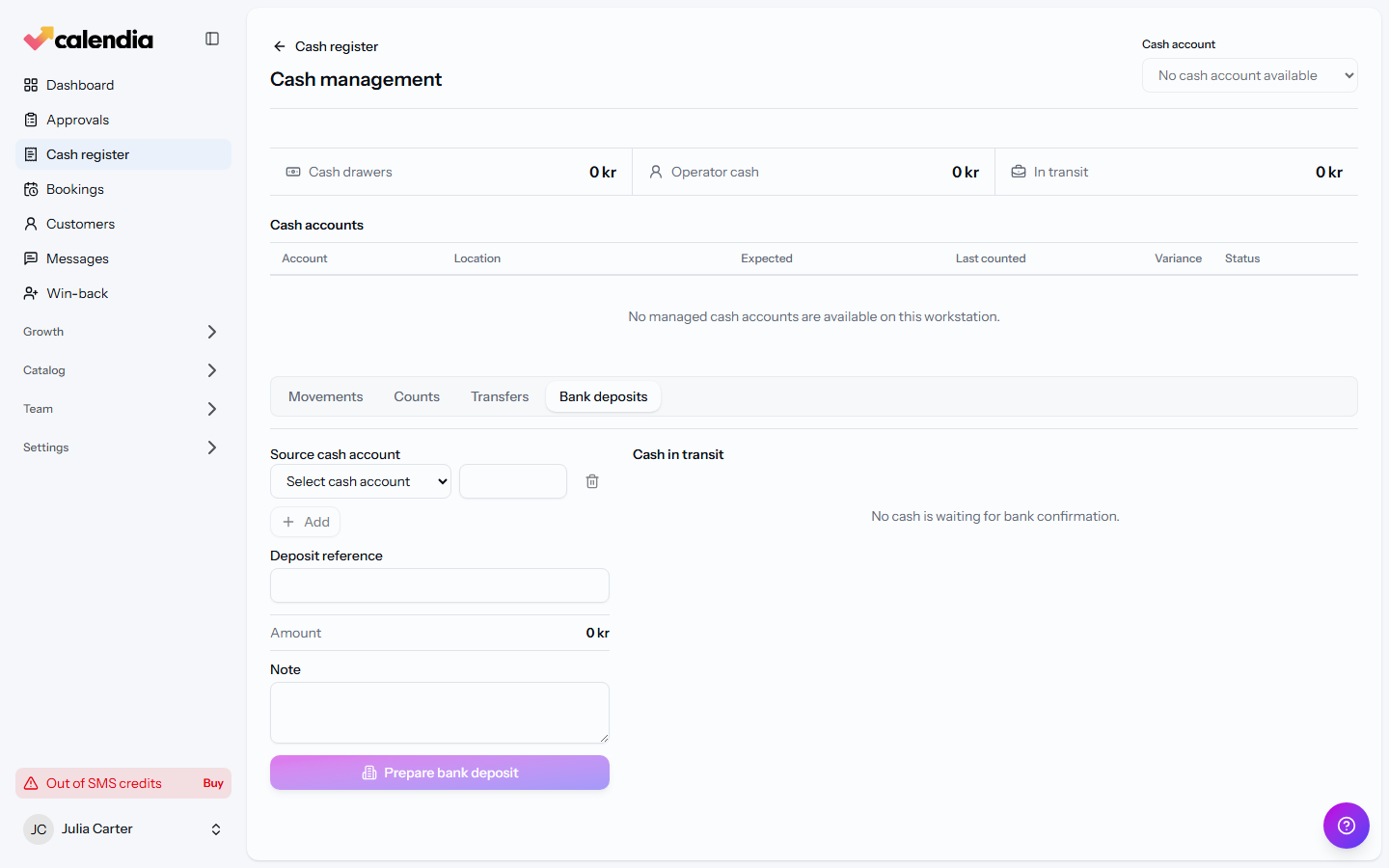
- Open the Bank deposits tab and add one or more Source cash account rows with amounts, plus a Deposit reference.
- Click Prepare bank deposit. The cash now shows as Cash in transit — still your business's custody, just not in a till.
- Once the bank or cash carrier has actually taken the cash, find it under Pending bank confirmation, enter a Bank reference, and click Confirm deposit. If the handover won't happen, choose which cash account should get the money back, enter a reason, and click Cancel deposit.
Externally managed cash
If your business declares another certified fiscal register as the system of record (in Company settings > Cash register), Calendia stores the payment reference but excludes that cash from its own managed balance. That cash must be counted, moved, deposited, and reported inside the external system instead — declaring it doesn't certify that the other system is compliant on its own.
Related articles
Open and close the cash register
Open the register before your first sale of the day, run an X report whenever you need a snapshot, and close with a daily settlement so your Z report and cash count line up.
Receipts and refunds
Print or email a receipt, find any past sale in the receipt archive, and issue a refund without ever editing the original document.