Receipts and refunds
Print or email a receipt, find any past sale in the receipt archive, and issue a refund without ever editing the original document.
Every finalized sale gets a receipt, and that receipt can never be edited or deleted afterwards — a mistake is always fixed with a new, linked document instead. This keeps your fiscal record trustworthy and, for Norwegian businesses, is a legal requirement.
Print or email a receipt
Right after a sale completes, use the buttons on the receipt view:
- Print receipt — sends it to your connected receipt printer.
- Email receipt — enter the customer's email and click Send.
- Download JSON — the raw receipt data, useful for troubleshooting.
Find a past receipt
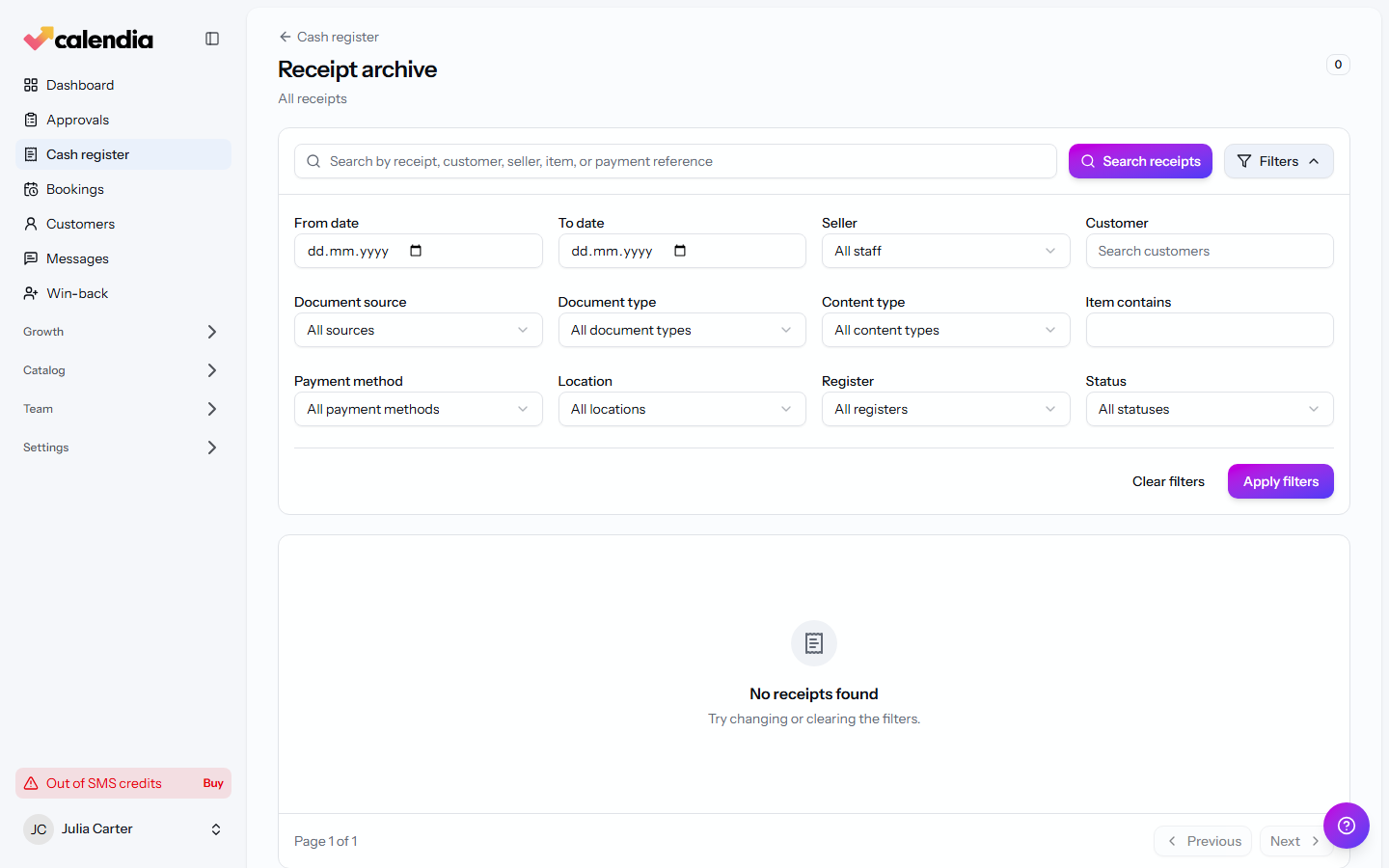
- Click Receipt history in the register workspace, or open All receipts for the full archive.
- Use the filters — From date/To date, Seller, Customer, Payment method, Location, Register, Status and more — to narrow the search, then click Apply filters.
- Click a row to see its full contents, tax breakdown, and payment details, or click View.
Refund a payment
- Find the sale in Receipt history and open it.
- Next to the payment, click Refund payment.
- Choose a Refund destination — Original payment method or Gift card — add a Reason, and confirm.
A refund creates its own return receipt referencing the original; the original sale is never rewritten.
Return products
For a product sale, use Return in the register workspace instead:
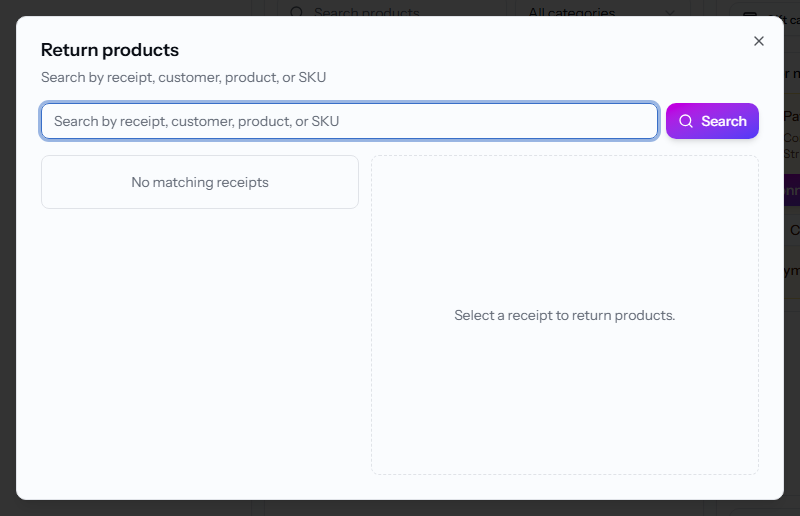
- Click Return and search for the receipt.
- Choose the product lines and quantities being returned, and whether the stock should be restocked.
- Choose the refund destination and a reason, then submit.
Copy and reprint
The second time a receipt is printed, it's marked as a copy; any further print is clearly marked as not a valid receipt. Both are recorded, so your receipt count always matches what was actually handed to customers.
Related articles
Sell services and products
Build a sale in the register workspace — add services or products, attach a customer, apply a discount, and take payment.
Open and close the cash register
Open the register before your first sale of the day, run an X report whenever you need a snapshot, and close with a daily settlement so your Z report and cash count line up.
Payment methods and terminals
Take cash, card, gift card, or invoice payments at the register, connect a card terminal, and know what to do when a terminal payment fails.