Payment methods and terminals
Take cash, card, gift card, or invoice payments at the register, connect a card terminal, and know what to do when a terminal payment fails.
Once a sale is ready, the register offers a set of payment methods based on what your business has enabled and connected. This article covers each one and what happens when a card payment doesn't go through.
Available payment methods
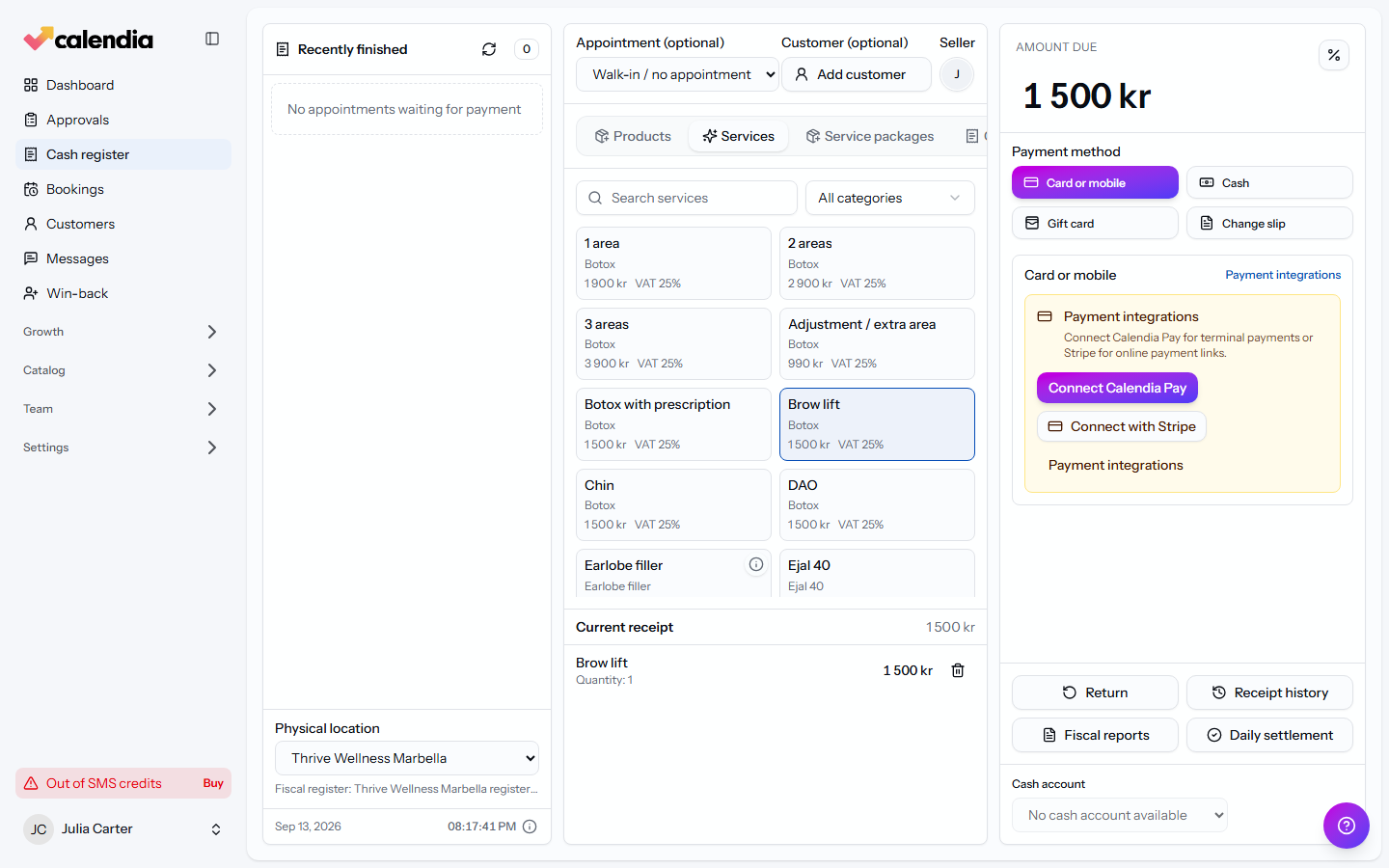
At checkout, choose one of the tiles under the amount due:
- Card or mobile — sends the amount to a connected card terminal, such as Calendia Pay or SumUp, or sends the customer a Stripe payment link by email or SMS to pay on their own phone.
- Cash — only shown if your business accepts cash payments (set in Company settings).
- Gift card — enter the Gift card code (and PIN, if the card has one); the balance is deducted automatically.
- Change slip — redeem a previously issued change slip instead of cash or card.
- Invoice — only shown for a selected appointment, and only for staff with invoicing access; turns the balance into an invoice instead of collecting payment now. See Invoices.
Connect a card terminal
If no terminal is connected yet, the Card or mobile panel shows a Payment integrations prompt instead of a terminal list.
- Click Connect with Stripe, or click Payment integrations to see every option (Calendia Pay, SumUp, and others depending on your country).
- Once connected, terminals appear as tiles here; if you have more than one, pick the right one from the Terminal dropdown before sending the payment.
Split a payment across methods
A sale can be paid with more than one method — take a partial cash payment, then switch tiles and pay the remainder by card. Each payment is recorded separately and both appear on the final receipt.
Record a payment taken outside Calendia
If a customer paid on a standalone terminal that isn't connected to Calendia, click Register external card payment under the terminal options, enter the Amount and, optionally, a Terminal receipt reference, then submit it. This records the payment without routing it through an integrated terminal.
When a terminal payment fails
If a connected terminal declines or times out, Calendia shows a Terminal payment failed dialog with the reason. Nothing is charged to the sale — close the dialog and try again, or choose a different payment method.
Refunding a payment
To reverse a payment after the sale is finalized, open it from Receipt history and click Refund payment, choosing whether the money goes back to the Original payment method or a Gift card. See Receipts and refunds for the full flow.
Related articles
Sell services and products
Build a sale in the register workspace — add services or products, attach a customer, apply a discount, and take payment.
Receipts and refunds
Print or email a receipt, find any past sale in the receipt archive, and issue a refund without ever editing the original document.
Calendia Pay card terminals
Accept in-person card payments on a terminal that posts straight to the right sale, with its own idle-screen ads between payments.