Waiting-list offers are not being sent
Confirm the waiting list is enabled, check SMS credits, and make sure the service has a working provider before offers can go out.
Waiting-list offers only go out when a few conditions line up. Here's what to check.
Confirm the waiting list is turned on
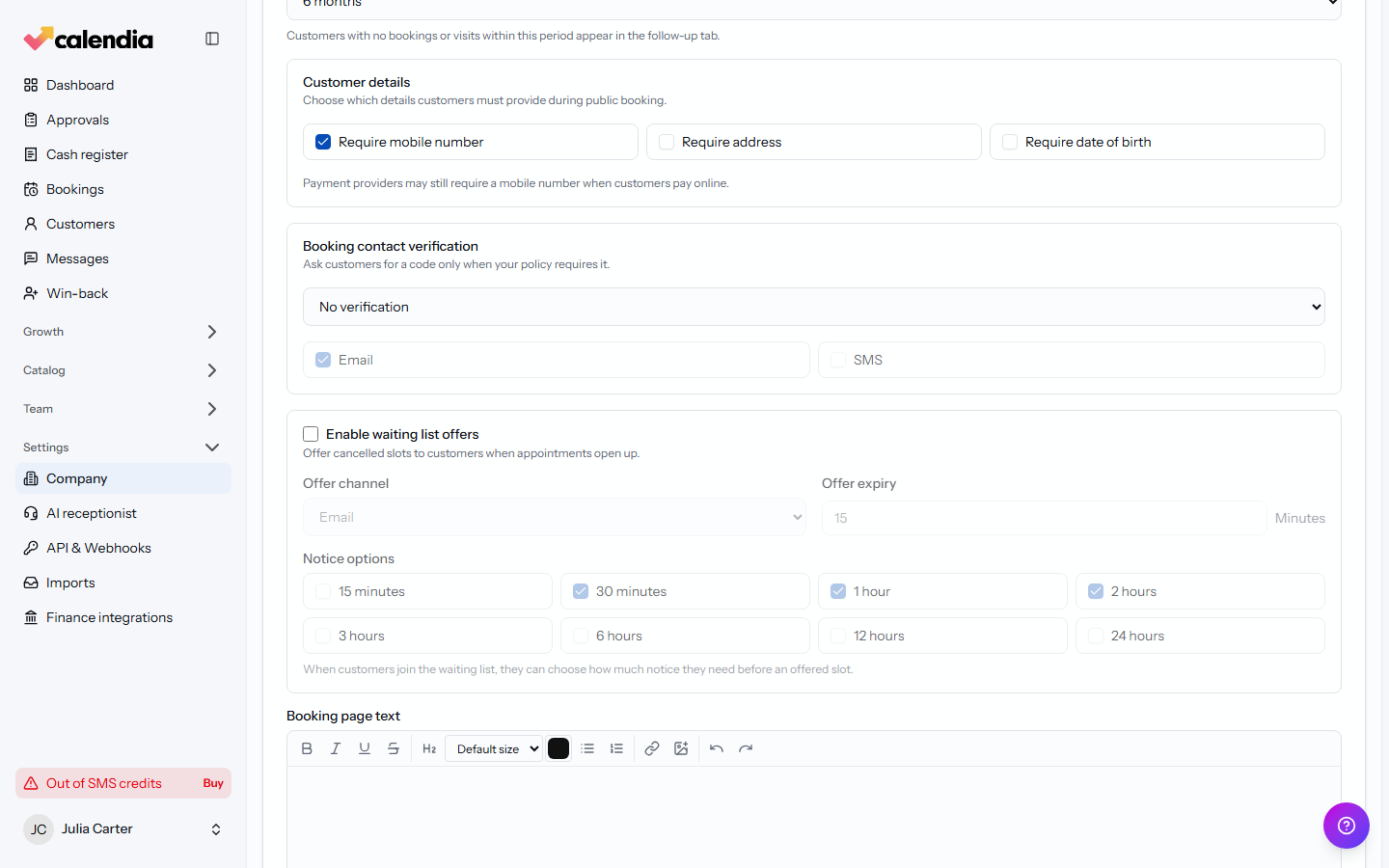
Go to Company settings, open the Bookings tab, and confirm Enable waiting list offers is checked. If it's off, cancelled slots are never offered to waiting customers at all.
Check the offer channel and SMS credits
The same section sets the Offer channel — Email, SMS, or both. If you're using SMS, low or exhausted SMS credits will silently stop offers going out. Check the SMS credit indicator in the sidebar for a Buy prompt if you've run out.
Check the offer expiry and notice options
A short Offer expiry window means an offer can lapse and move to the next customer before anyone notices — consider lengthening it if offers seem to disappear quickly. Also check that at least one option under Notice options matches what your waiting customers actually chose; a mismatch means nobody currently qualifies for the opened slot.
Check the service has a working provider
An opened slot can only be offered if a qualified, working employee is available for it — see Employee isn't showing up as bookable if that's in question.
Related articles
Waiting list
Let customers join a waiting list when your calendar is full, and automatically offer them any slot that opens up.
Online booking settings
Control how far ahead customers can book, what details they must provide, and whether they pay a deposit, the full price, or nothing at booking.
Employee isn't showing up as bookable
Check working hours, absence exceptions, service access, and role — any one of these can hide an employee from booking.