Payment terminal is not connecting
Check power and network, review device status in Manage devices, and re-pair the terminal if its registration code expired.
If a card terminal won't take payments, work through these checks before contacting support.
Check power and network
Confirm the terminal is powered on and connected to the internet — Wi-Fi or ethernet, depending on how it's set up. A terminal that's lost its connection can't reach Calendia to authorize a payment.
Check its status in Manage devices
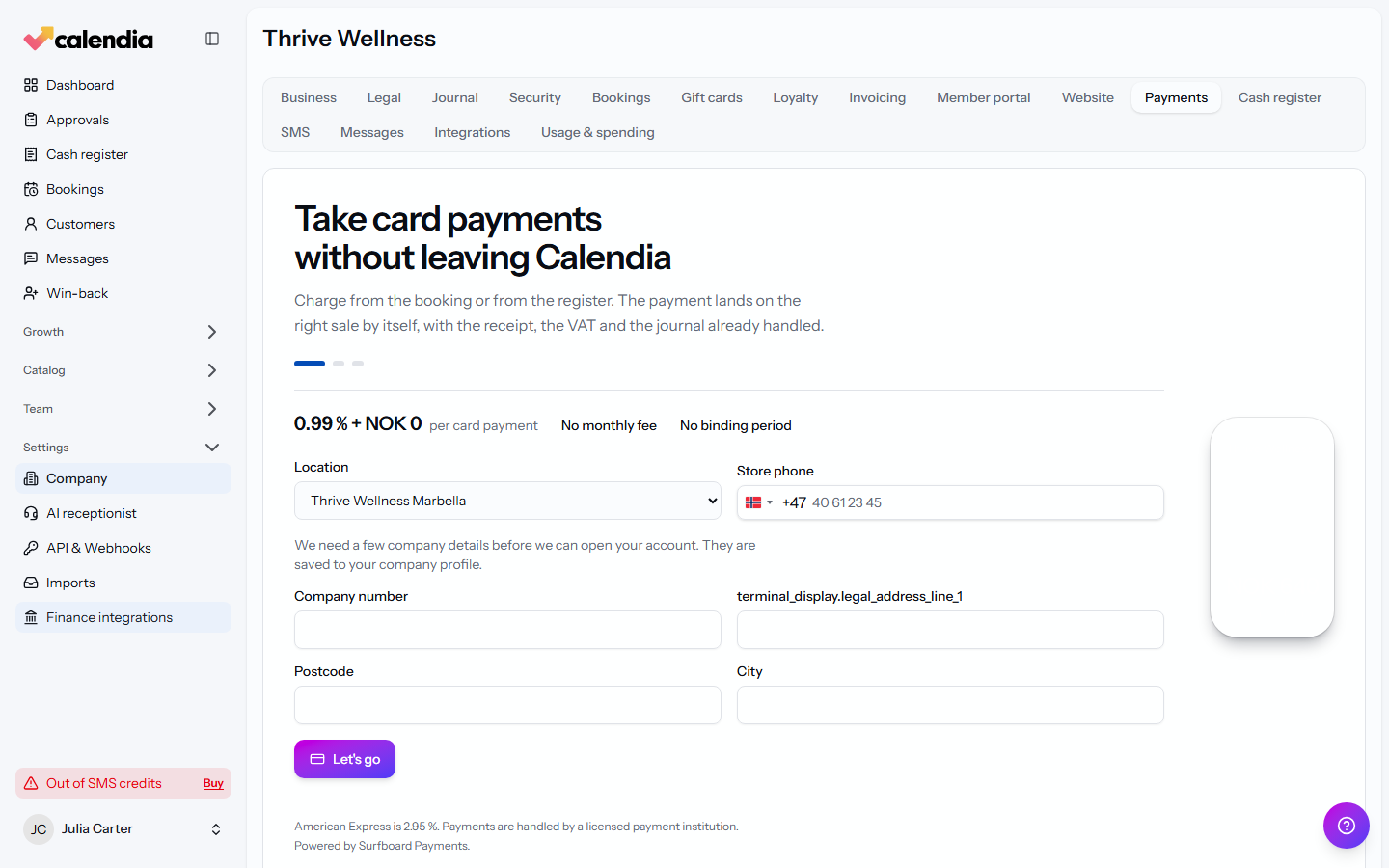
- Go to Company settings and open the Payments tab.
- Find Manage devices, which lists your terminals and their status: Connected, Not connected, Disconnected, or Waiting for the terminal.
- Check the Last seen time for the terminal in question — if it hasn't checked in recently, it's likely offline on its end.
- Click Refresh terminals to pull the latest status.
Re-pair if the registration code expired
Registration codes for pairing a new terminal expire after a while. If pairing fails with an invalid or expired code, read a fresh code from the terminal and click Connect terminal again.
Still not connecting?
If the terminal shows as connected in Calendia but still won't take a payment, the payment service itself may be briefly unreachable — wait a few minutes and try again before reaching out to support.
Related articles
Payment methods and terminals
Take cash, card, gift card, or invoice payments at the register, connect a card terminal, and know what to do when a terminal payment fails.
Calendia Pay card terminals
Accept in-person card payments on a terminal that posts straight to the right sale, with its own idle-screen ads between payments.
Open and close the cash register
Open the register before your first sale of the day, run an X report whenever you need a snapshot, and close with a daily settlement so your Z report and cash count line up.