Calendia Pay card terminals
Accept in-person card payments on a terminal that posts straight to the right sale, with its own idle-screen ads between payments.
Calendia Pay is Calendia's own card terminal option. Charge from a booking or from the cash register, and the payment lands on the right sale automatically with its receipt, VAT and accounting journal already handled — no separate terminal contract or portal.
Apply
Open Company settings > Payments. The Calendia Pay panel shows the price per card payment and whether a monthly or terminal fee applies. To apply:
- Choose your Location.
- Enter the Store phone number.
- If asked, fill in the company details Calendia doesn't have yet, such as the registered company name, company number, address and billing email — these are saved to your business profile so you're never asked twice.
- Click Let's go.
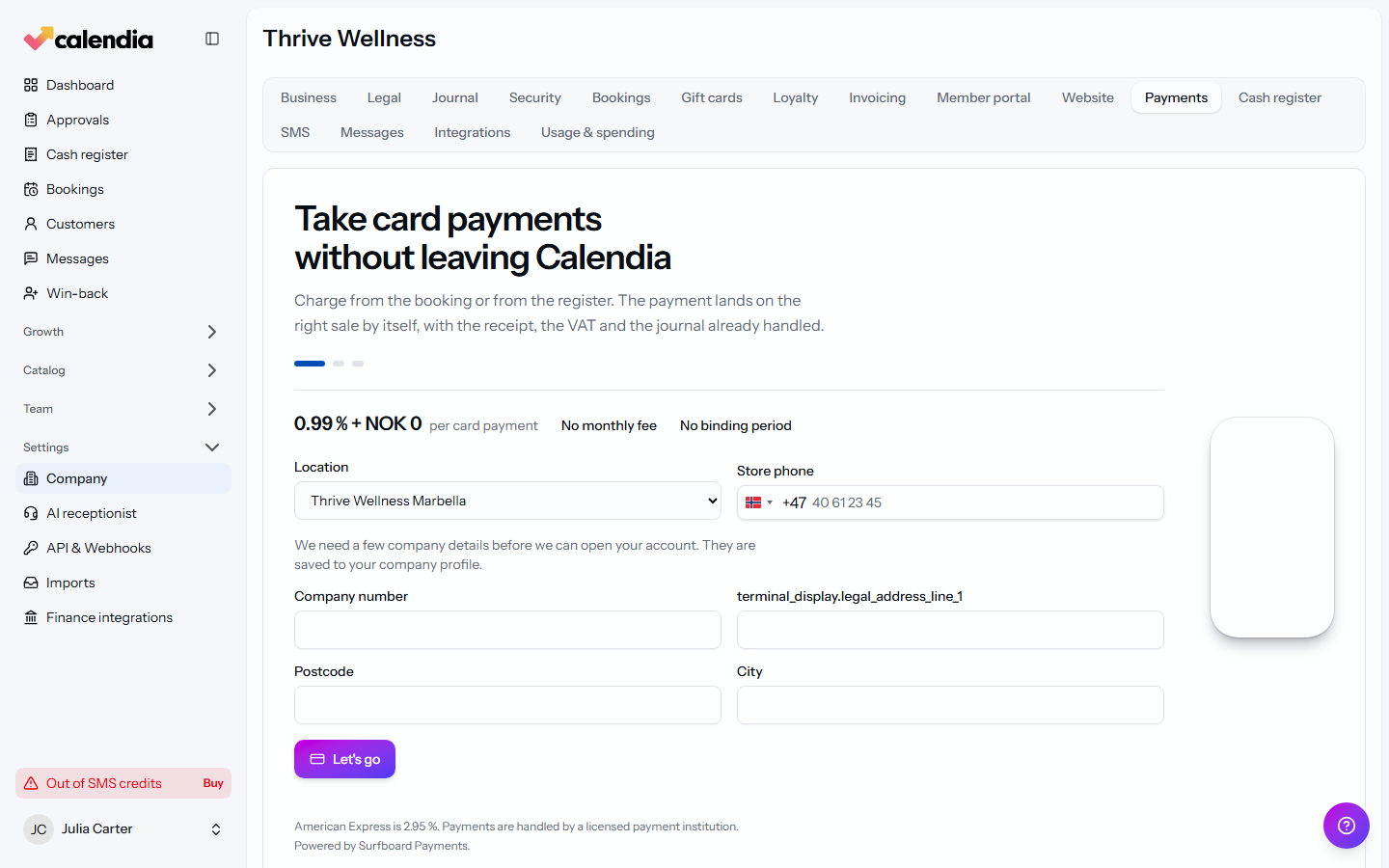
Verify your business and add a store
After applying, Calendia Pay reviews your application. Once approved, register a store for the location you'll be taking payments at.
Connect a terminal
Order a terminal (choose a model, quantity and delivery address and click Place terminal order), or pair one you already have: read the 6-digit code the terminal shows on startup, or its serial number, and enter it under Connect terminal. Terminal orders show their status — Order placed, Awaiting stock, Shipped, Delivered — and can be tracked from the same screen.
Activate the customer display
Terminals also show a customer-facing display. From Manage devices, activate the display with the code shown when the terminal starts, then restart the terminal. Once connected, customize the idle screen under Display look — logo, position, background and text colour — and create ads under Terminal ads to show offers, photos or muted videos while the terminal is idle between payments.
If a payment fails
A declined or failed card shows an error on the terminal so the customer can try another card. If Calendia can't confirm a payment with the terminal in time, it's closed automatically — check the terminal before charging again rather than retrying blind.
Related articles
Payment methods and terminals
Take cash, card, gift card, or invoice payments at the register, connect a card terminal, and know what to do when a terminal payment fails.
Open and close the cash register
Open the register before your first sale of the day, run an X report whenever you need a snapshot, and close with a daily settlement so your Z report and cash count line up.
Receipts and refunds
Print or email a receipt, find any past sale in the receipt archive, and issue a refund without ever editing the original document.