Connect an accounting or ERP system
Send your daily cash register sales, refunds and other financial activity straight into your accounting system instead of entering them by hand.
If you use an accounting or ERP system, Calendia can post your cash register sales, refunds and other financial events to it automatically, so your books stay up to date without manual entry.
Available connectors
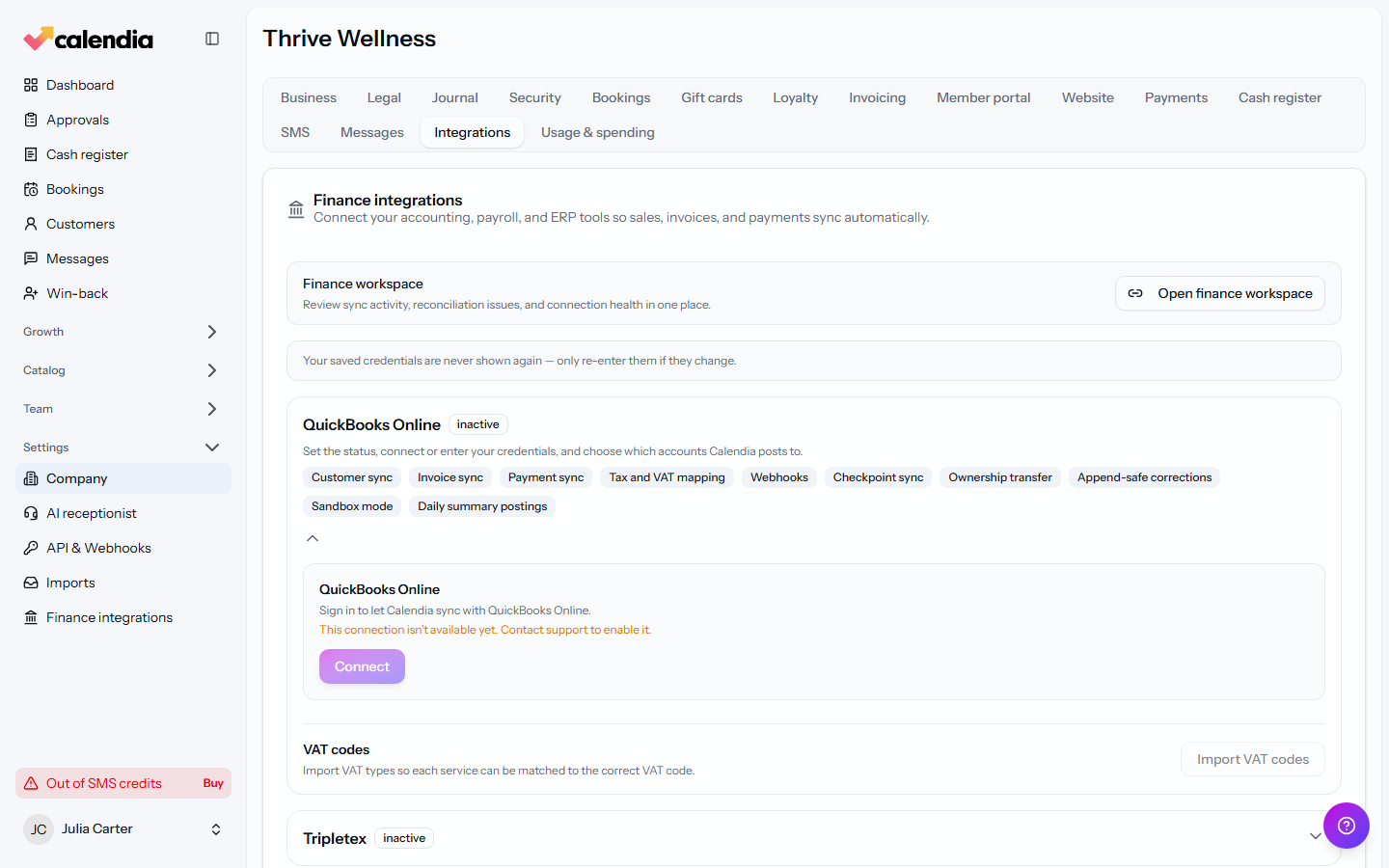
Open Company settings and go to the Integrations tab to see every supported connector:
- QuickBooks Online
- Tripletex
- Fiken
- DNB Regnskap
- Holded
- Fortnox
- Visma eAccounting
- e-conomic
- Sage Active
- a3innuva Contabilidad
- Contasimple
- Anfix
Each connector card shows what it supports as a set of badges, such as customer sync, invoice sync, journal support, or daily summary postings.
Connect a connector
- Click a connector's card to expand it.
- Connect it. QuickBooks Online, Fortnox, Visma eAccounting and Fiken use Connect (an OAuth sign-in to your account); the rest ask for an API key or token, for example a Tripletex API key or an e-conomic app secret and agreement grant token.
- Set Connector status to Active (or Sandbox if the connector offers a test mode).
- Review the account mappings — income accounts, payment accounts by method, VAT-rate accounts, gift card liability and payroll accounts. Calendia pre-fills sensible defaults, but you can override any of them to match your chart of accounts.
- Click Save connector settings (or the connector-specific save button, such as Save Tripletex mappings).
Choose when postings are sent
For connectors that support daily summaries, open Accounting posting frequency and choose:
- Live transfers — every sale, payment and refund is sent as it happens.
- Automatic daily posting — one summarized transaction per business date, sent automatically after midnight.
- Daily posting after settlement — one summary sent once every active register and location has completed its daily settlement (needs an active cash register).
Changes take effect from the next business date, so the current day keeps one consistent posting method. Click Save posting frequency.
Check sync health and fix issues
Open Finance integrations in the Settings section of the sidebar to monitor every connected provider in one place. The Sync health panel shows, per connector, the last sync time, pending and failed jobs, and a list of recent daily postings with their status (Pending, Processing, Completed, Failed, Blocked or No-op). Use Retry on a failed item to resend it, or Sync customers / Sync services to push your catalog on demand.
If Calendia can't match something on your side to something in the connector, it appears under Reconciliation issues, grouped by severity, so you can investigate before it drifts further from your books.
Related articles
Reports and exports
Download a single PDF report for a period, or generate a full accountant package with receipts, a workbook, and Z reports.
Invoices
Bill a customer or a billing account directly, record payments against an invoice, and issue a credit note when something needs correcting.
API tokens and webhooks
Give an external system read or write access to your bookings and customers with an API token, or subscribe it to booking events with a webhook.